Installation Guide
Client Installation and Account Registration
1.Download the manager and complete the installation (click the link): https://downloads.u-bim.net/uBIM_Setup.exe
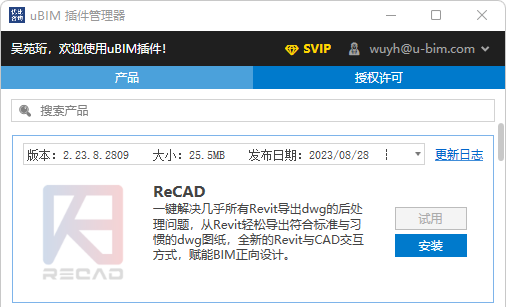
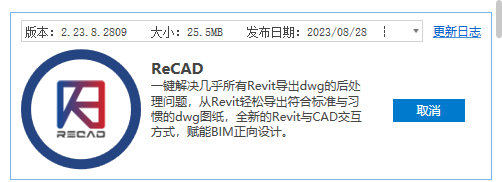
2.Open the “uBIM Plugin Manager”, click to try or install the ReCAD plugin, and wait for the background process to complete. This completes the plugin installation.
⚠️ Note
Users who installed an older version before April 25, 2023, please uninstall ReCAD first from the Control Panel, or directly click “Reinstall” or “Update” in the manager.
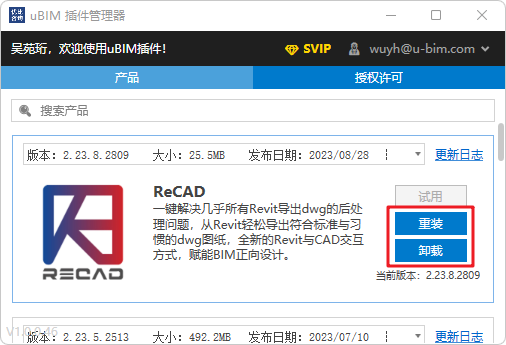
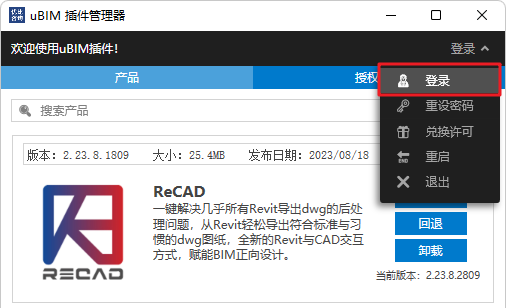
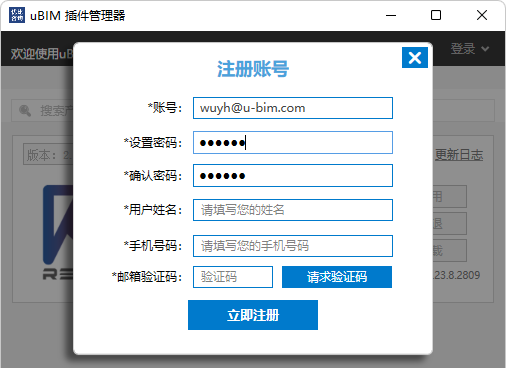
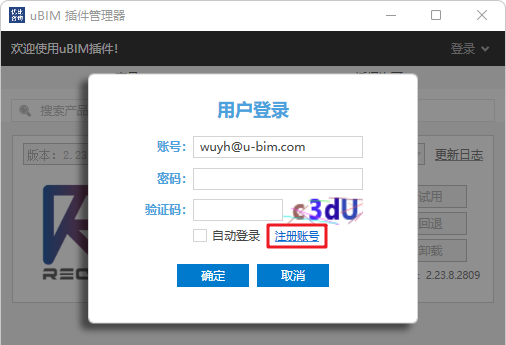
3.For first-time users, open the dropdown menu “Login”, click “Login” → “Register Account”, fill in the required information, and finally click “Register Now” to complete the registration process.
Login and Check License
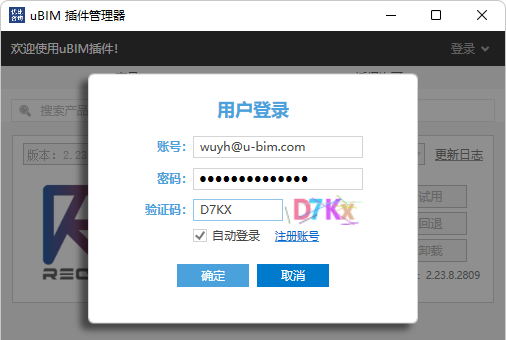
1.Open the dropdown menu “Login” → click “Login”, enter your registered information, and complete the login.
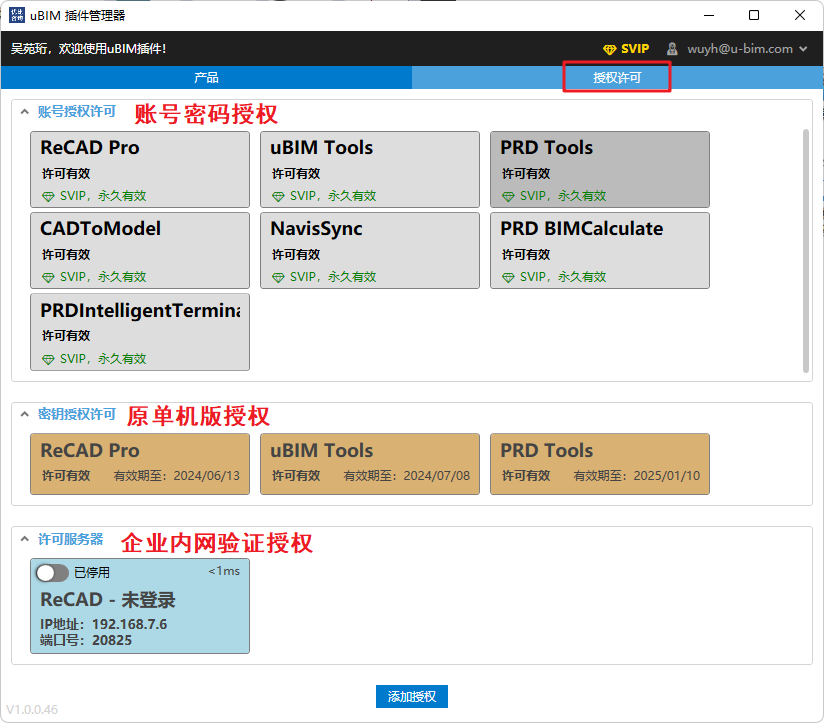
2.Click “License” to view your currently purchased software licenses. The image shows an example of three different license statuses:
License Instructions (ReCAD / ReCAD Pro)
There are two ways to obtain plugin licenses:
Method 1: Contact Weidian customer service for backend authorization (registration account required).
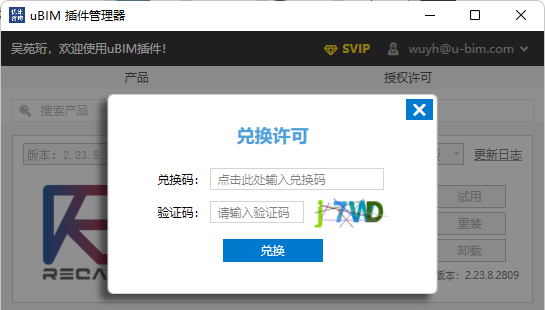
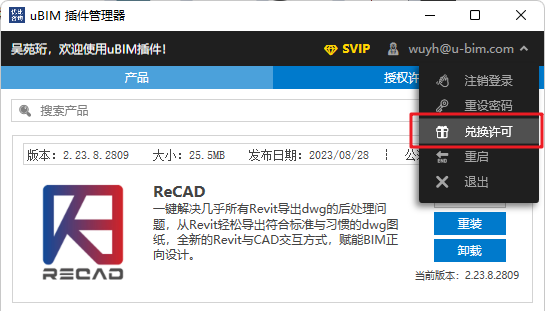
Method 2: Obtain a “License Redemption Code” for authorization. The license code is provided by Weidian customer service. After logging in normally, open the dropdown menu in the top right corner, click “Redeem License”, enter the code provided by customer service, and the authorization is complete.