[Copy to CAD] Feature
Feature Description
This feature allows you to copy element information from Revit to the clipboard through export processing, and paste it directly as single-line elements in AutoCAD. It requires minimal steps and makes data transfer between AutoCAD and Revit faster and more convenient.
During drafting, this feature can project the 3D model details built in Revit into a 2D view, allowing the required elements to be copied directly to AutoCAD for 2D node and detail refinement.
Notes
1.In the project file, select a 2D view before executing the command.
2.Not supported in 3D views, sheet views, or schedules.
3.Only supported in plan views, section views, elevation views, detail views, area plans, and legend views.
Steps
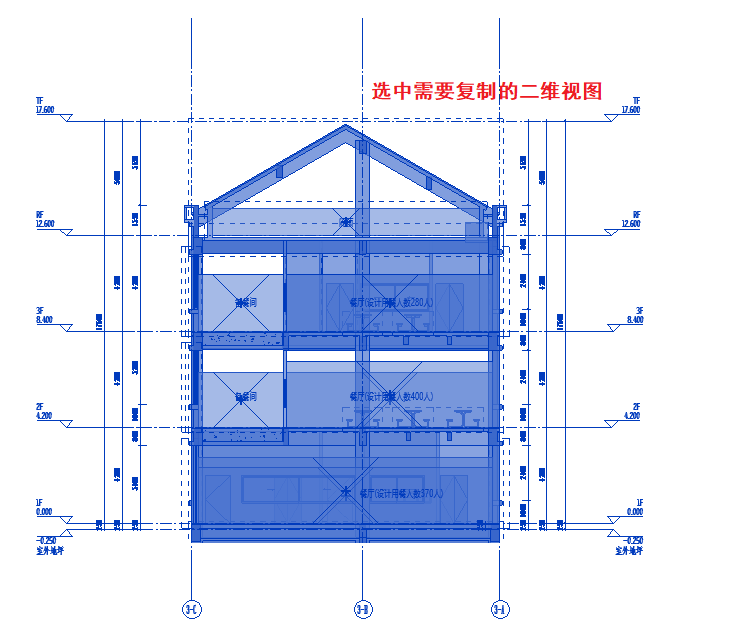
1. Select the 2D View to Copy
Select the elements in the 2D view you want to copy. This operation is not supported in 3D views, sheet views, or schedules.

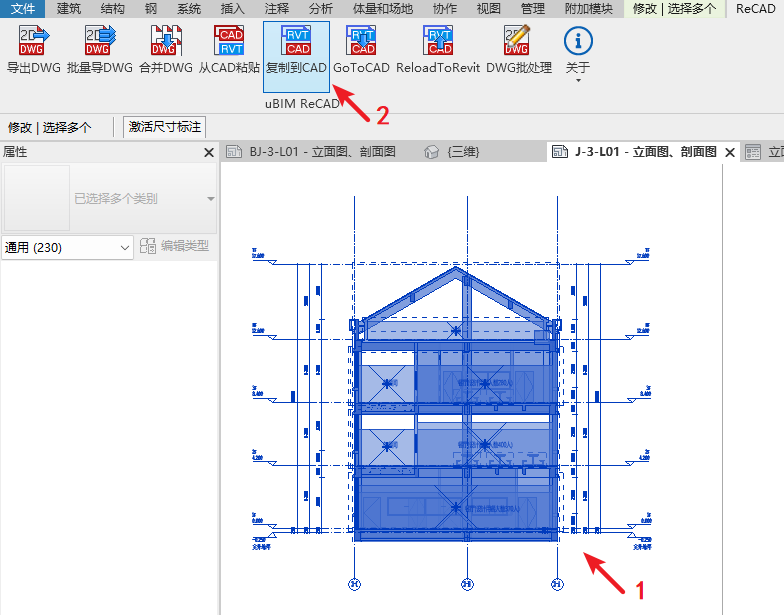
2. Execute the [Copy to CAD] Command
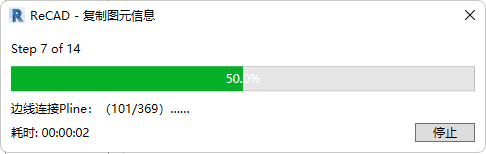
In the ReCAD tab, execute the [Copy to CAD] command from the uBIM ReCAD toolbar. This will open the Select AutoCAD Version window.
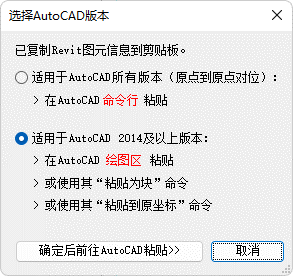
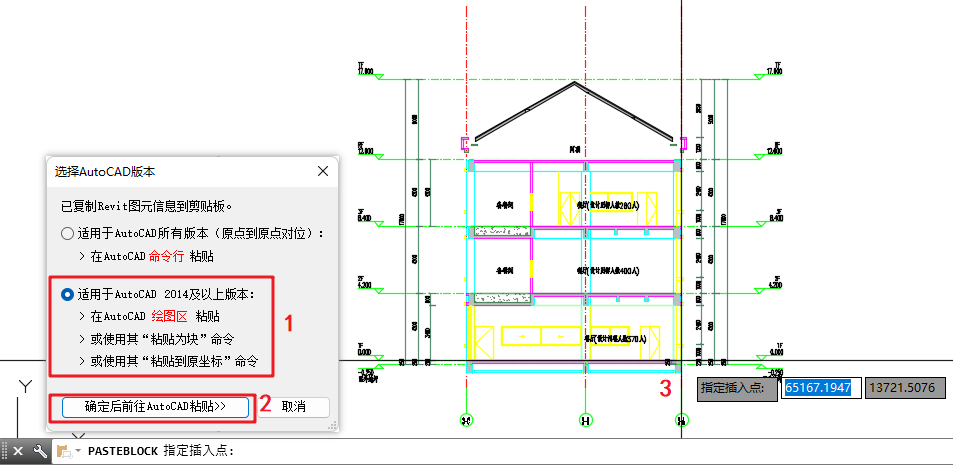
3. AutoCAD Version and Paste Method Settings
After executing the [Copy to CAD] command, the Select AutoCAD Version window will appear.
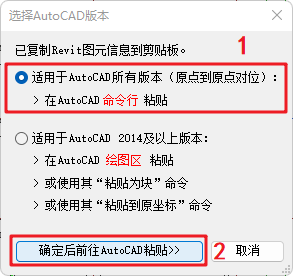
Method 1: Paste in the AutoCAD Command Line
This method works for all AutoCAD versions and aligns elements origin-to-origin.
In the Select AutoCAD Version window, choose Applicable to All AutoCAD Versions → Click Confirm and Go to AutoCAD to Paste → In AutoCAD, paste using the command line.
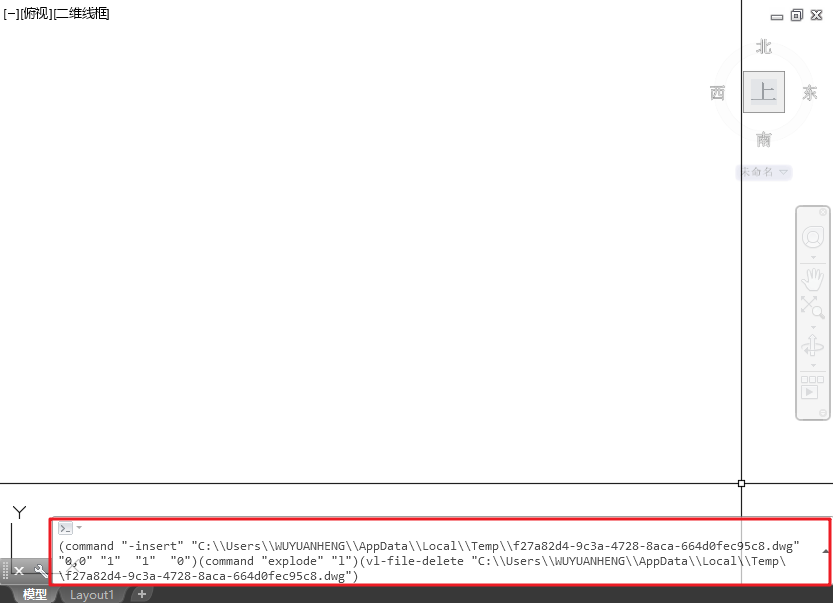
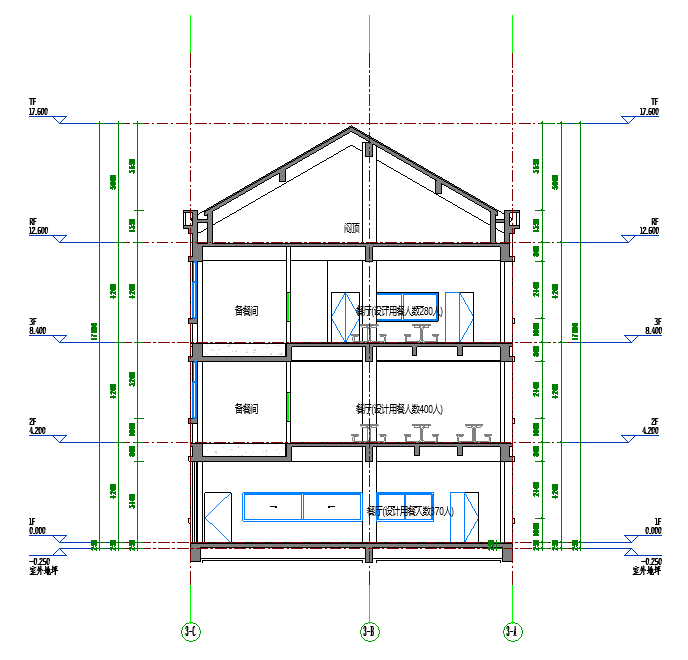
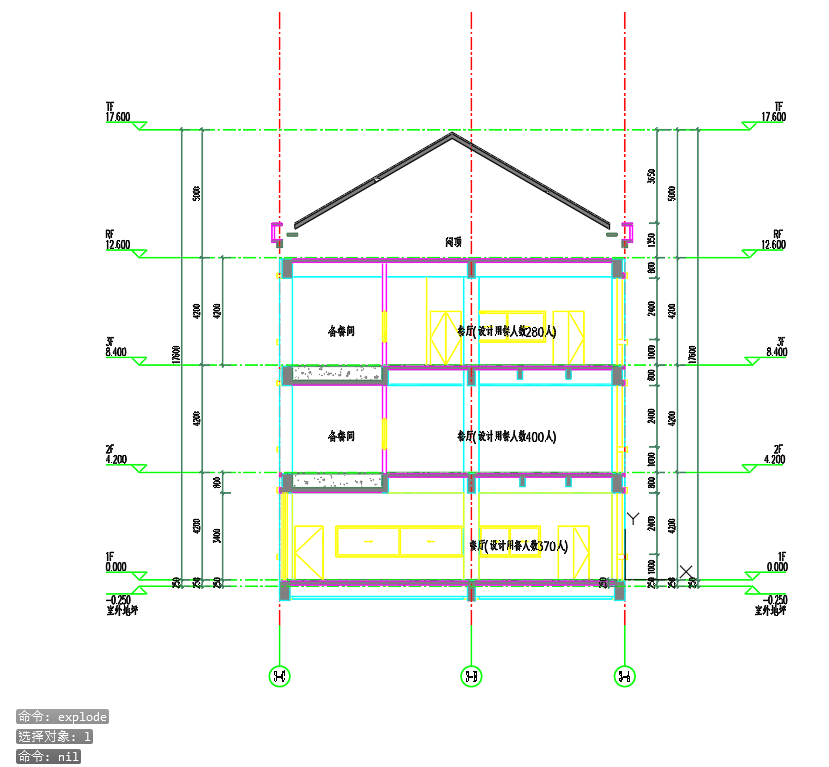
Method 2: Paste in the AutoCAD Drawing Area
In the Select AutoCAD Version window, choose Applicable to AutoCAD 2014 and Later → Click Confirm and Go to AutoCAD to Paste → In the AutoCAD drawing area, use Paste as Block (Ctrl+Shift+V) to paste at the specified location.