[Batch Export DWG] Feature
Feature Description
This feature is an advanced version of the Export DWG function. It allows you to select multiple sheets, floor plans, sections, etc., set parameters uniformly, and batch export DWG drawings. The operation is very simple and suitable for all Revit-based drafting projects.
Notes
1.When multiple projects are open, export only the sheets belonging to the current view’s project.
2.The command can be executed in both 3D and 2D views.
3.Supports exporting floor plans, sections, elevations, detail views, drafting views, area plans, legends, and sheet views.
Steps
1. Execute the [Batch Export DWG] Command
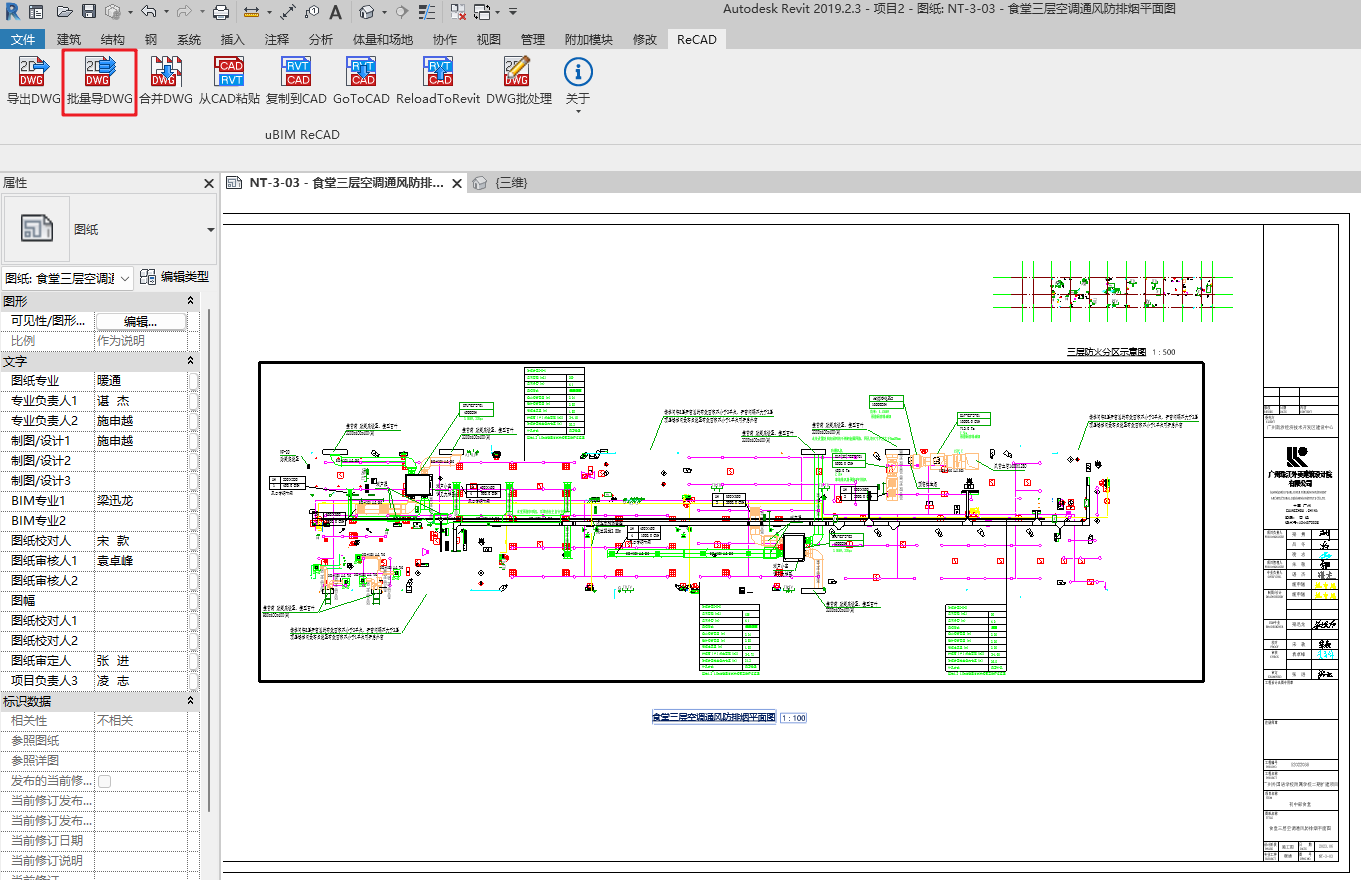
In the ReCAD tab, execute the [Batch Export DWG] command from the uBIM ReCAD toolbar. This will open the DWG Export Settings window.
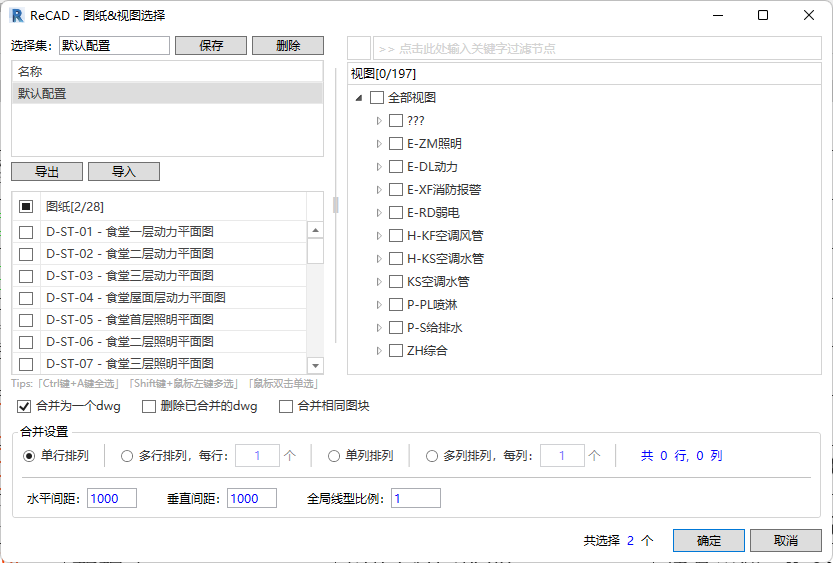
2. Select the Sheets/Views to Export
Choose the sheets or view sets to export. Supported types include sheet views, floor plans, sections, elevations, detail views, drafting views, area plans, and legends.
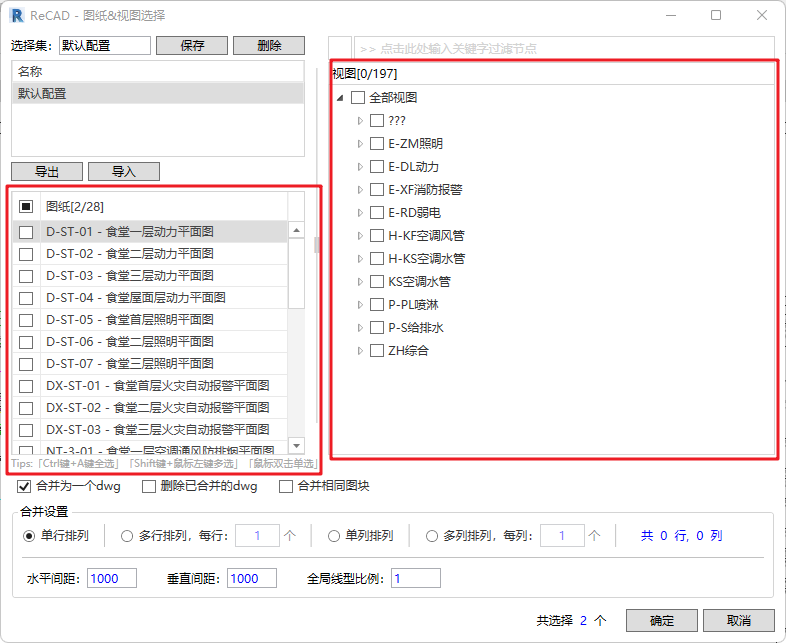
- Use Ctrl+A to select all views, Shift + Left Click to select multiple views.
- Use keyword search to filter and quickly locate the required views.
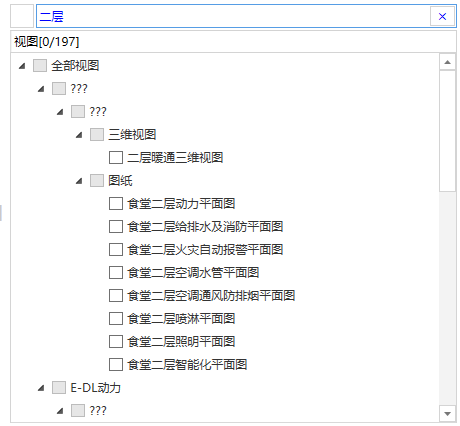

- You can configure frequently used sheet/view sets according to DWG export settings or project requirements to improve efficiency:
Create a New Selection Set: After selecting multiple views to export, enter a name in the selection set bar and click Save to create a new set.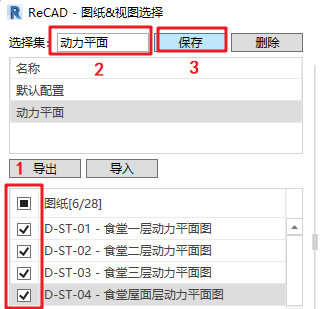
Export Selection Set: Choose Export, specify the save path, and click Save. A popup will confirm Save Successful.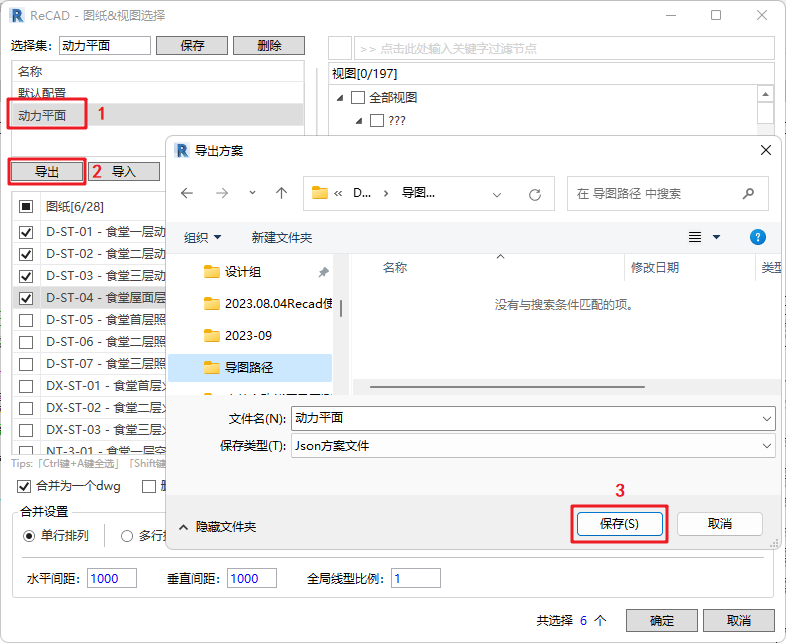
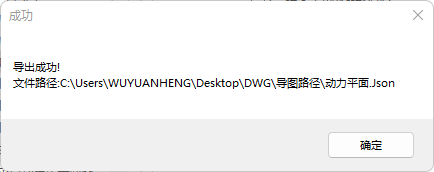
Import Selection Set: Choose Import, select the specified file (*.Json), and a popup will confirm Import Successful.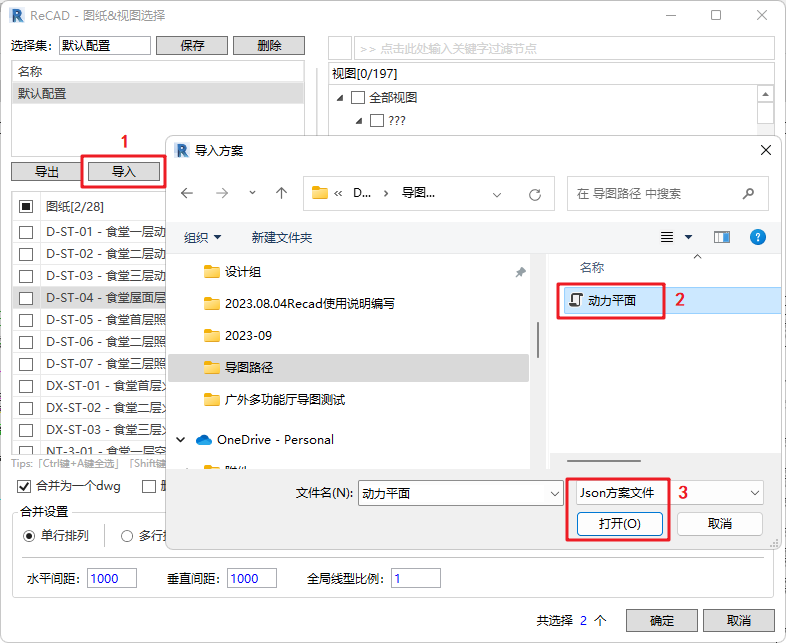
3. Pre-Merge Sheets
Merge and process the selected sheet/view sets based on the merge settings. Users can freely arrange multiple DWG files in rows and columns and define horizontal and vertical spacing between sheets. You can also check the option to identify and delete already merged DWG files or merge them with the same blocks. This function is a branch of the 5.3 section [Merge DWG] feature; see section 5.3 for details.

4. Confirm Export Settings
After completing sheet/view selection and pre-merge settings, click OK to open the DWG Export Settings window.
The parameter settings in this window are the same as in the [Export DWG] feature. Refer to that section for detailed guidance.
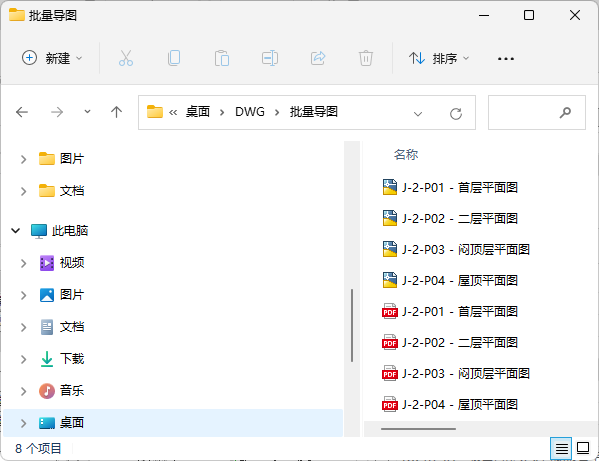
The [Batch Export DWG] feature supports batch export of both DWG and PDF files with layers.