[GoToCAD] and [ReloadToRevit] form a combined feature set for more efficient 2D and 3D interaction between Revit and AutoCAD/TArch.
[GoToCAD] Feature
Feature Description
This feature primarily exports 2D views to AutoCAD/TArch for detailed annotation, then returns to Revit using the [ReloadToRevit] command. By leveraging TArch’s fast annotation capabilities, it greatly improves BIM drafting efficiency.
Notes
1.In the project file, select and open the view you want to export before executing the command.
2.Can only be executed in plan views, section views, elevation views, and detail views.
Steps
1. Execute the [GoToCAD] Command
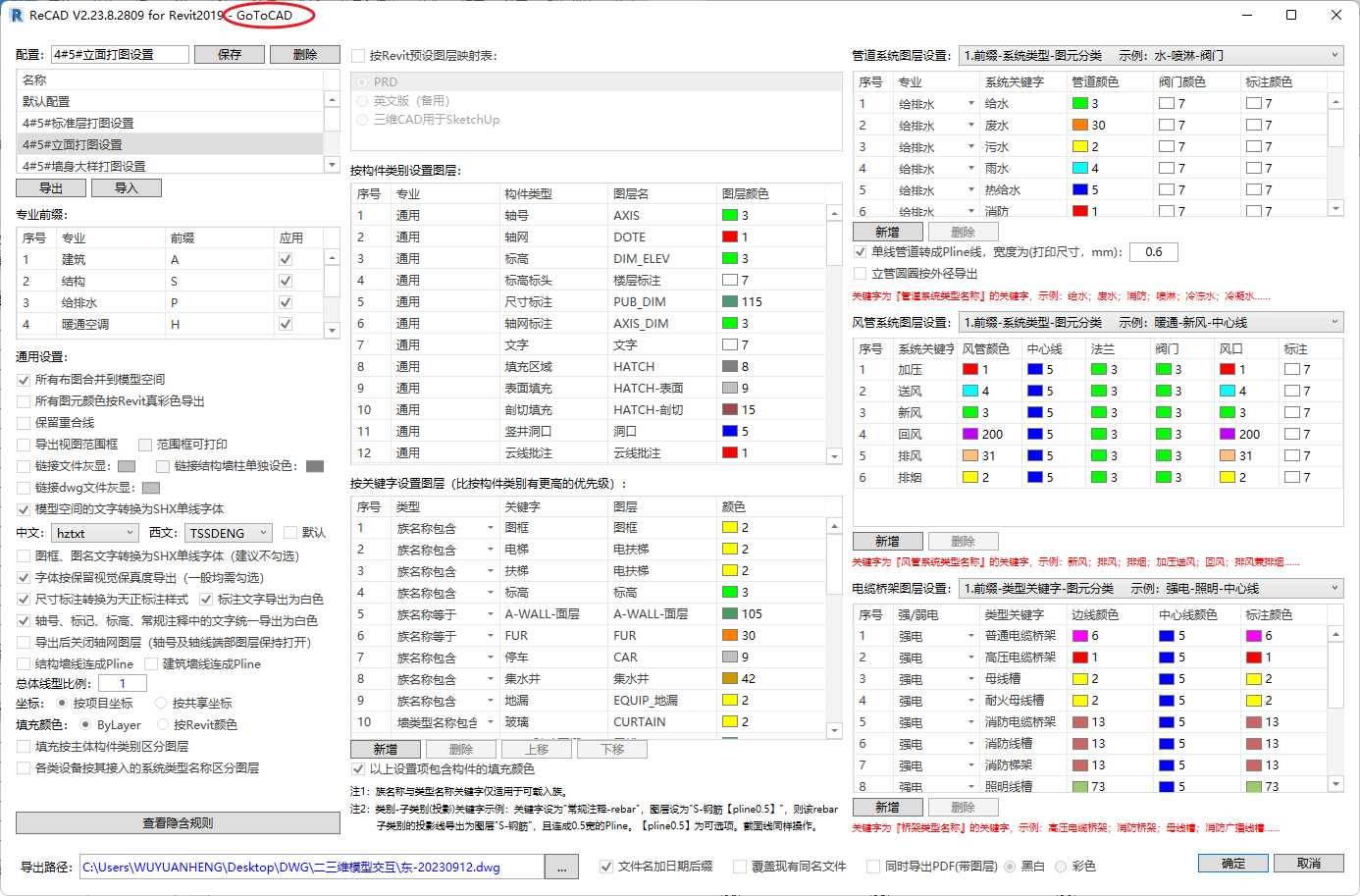
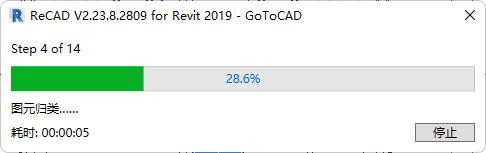
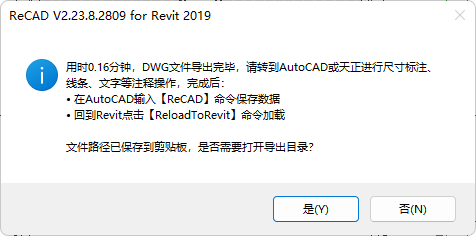
In the ReCAD tab, execute the [GoToCAD] command from the uBIM ReCAD toolbar. This will open the DWG Export Settings window based on the [GoToCAD] command. After completing the settings, click Confirm to export the DWG file. Upon completion, the user will see the export time and guidance for the next steps.
2. Annotation and Detailing in AutoCAD/TArch
After exporting with [GoToCAD] , users can add dimension annotations, lines, text, and other details. Once annotations are complete, enter the [ReCAD] command in AutoCAD’s command line to save the file.

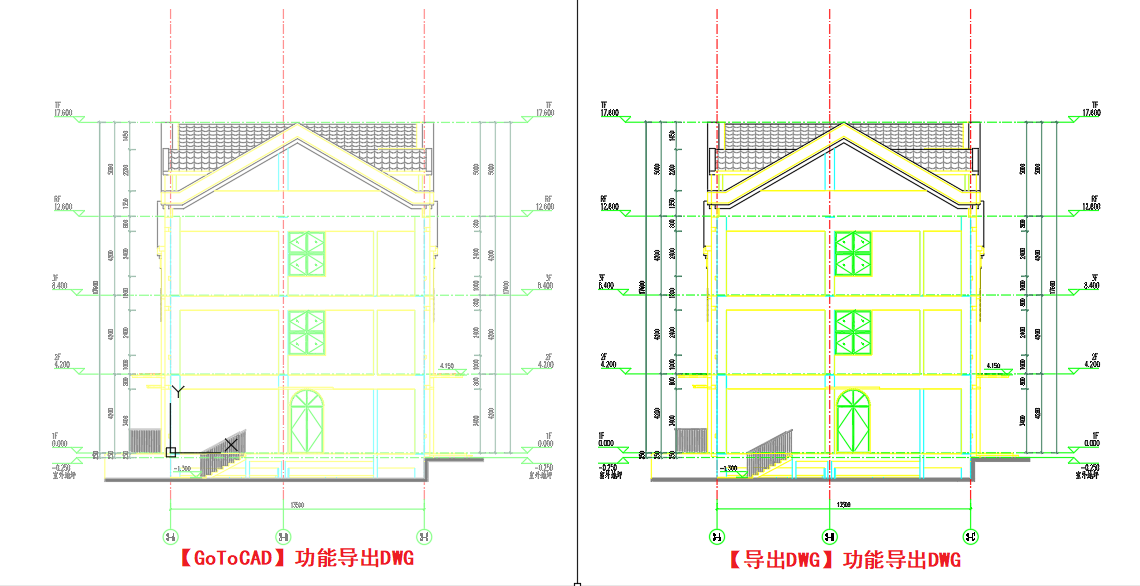
Compared to the [Export DWG] feature, [GoToCAD] automatically applies a halftone effect to the exported view, distinguishing the user-added annotation elements.
[ReloadToRevit] Feature
Feature Description
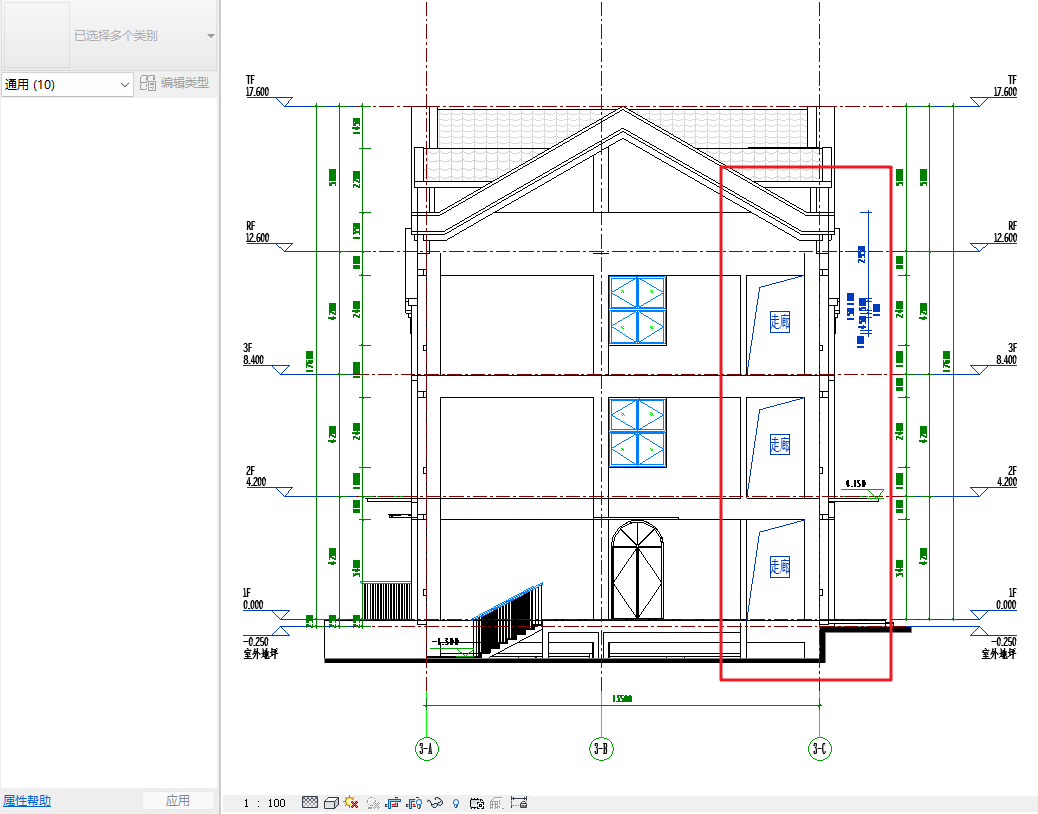
[GoToCAD] and [ReloadToRevit] together provide a more efficient 2D and 3D workflow between Revit and AutoCAD/TArch. [ReloadToRevit] mainly synchronizes annotation elements from CAD back into the current Revit view.
Notes
1.Annotation return is only applicable to DWG files exported using [GoToCAD] after annotation and detailing in CAD.
2.Can only be executed in plan views, section views, elevation views, and detail views.
Steps
1. Execute the ReloadToRevit Command
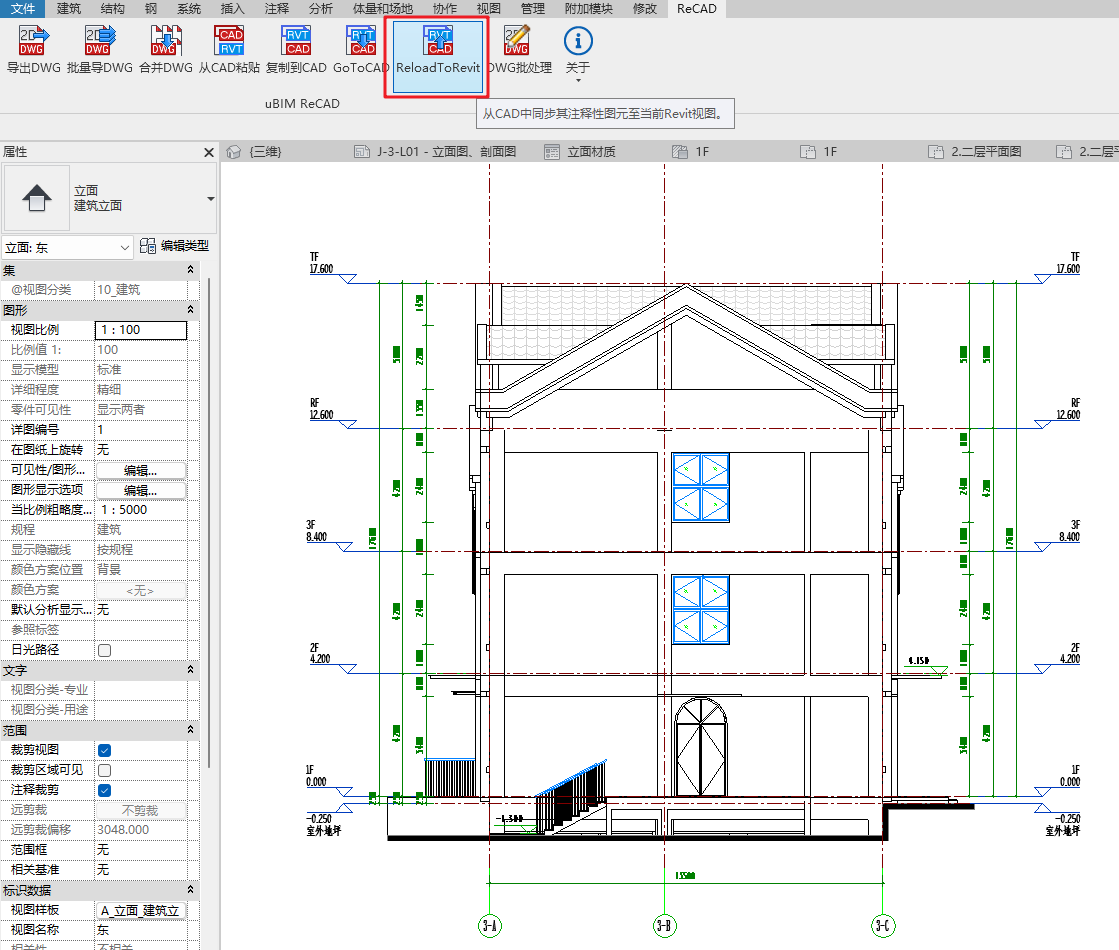
In the ReCAD tab, execute the [ReloadToRevit] command from the uBIM ReCAD toolbar.
2. Select the Annotated DWG File
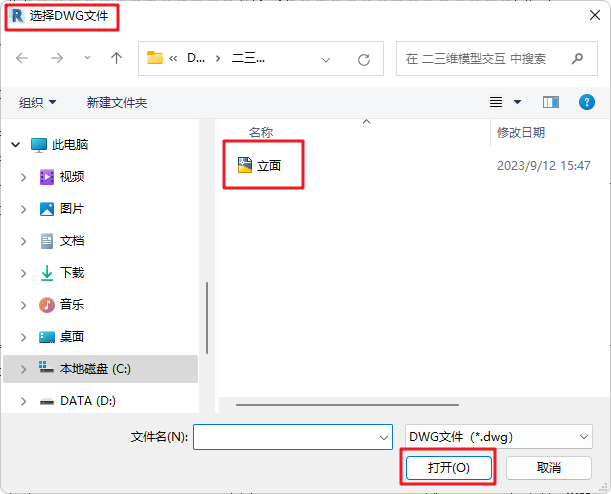
After executing [ReloadToRevit], select the DWG file with completed annotations → click Open.
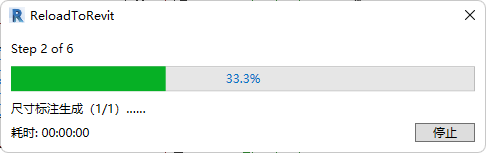
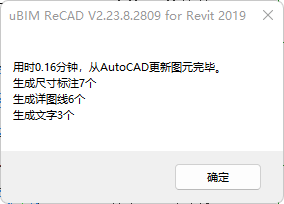
Once processing is complete, a notification will display that elements have been updated from AutoCAD, along with the processing time and the number of annotation elements synchronized.