[Paste from CAD] Feature
Feature Description
This feature allows you to directly paste CAD data from the clipboard into Revit as Revit elements, requiring minimal operations. It makes data transfer between AutoCAD and Revit faster and more convenient.
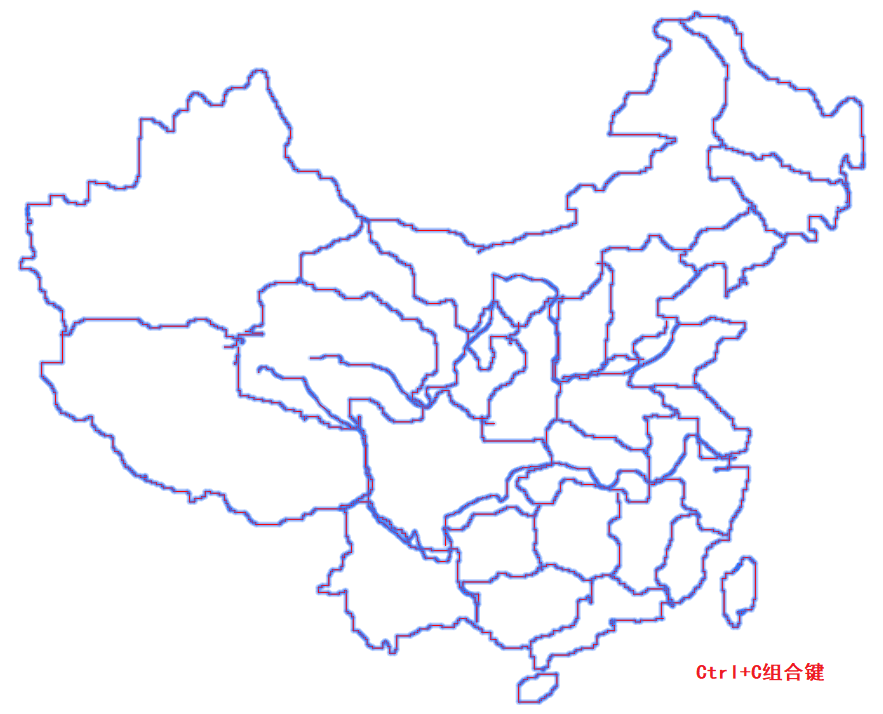
During Revit drafting, this feature lets you copy the required AutoCAD elements directly into Revit, avoiding the need to redraw in Revit, especially for schematic diagrams, tables, node diagrams, and detail drawings.
Notes
1.Before executing the command, you need to copy elements in AutoCAD.
2.In plan views, you can paste as model lines or detail lines; in 3D views, you can only paste as model lines.
3.Dimension annotations, hatch patterns, and text in enhanced attribute blocks are currently not supported.
Steps
1. Copy Elements
In AutoCAD, select the elements → press Ctrl+C to copy them to the clipboard.
If the copy in CAD fails, the plugin will prompt that there is no CAD data in the clipboard, and you need to repeat the operation.
⚠️ Clipboard Copy Failed Prompt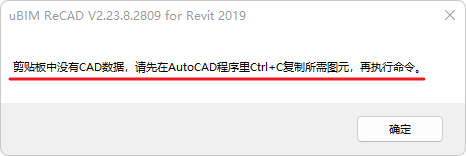
2. Execute the [Paste from CAD] Command
In the ReCAD tab, execute the [Paste from CAD] command from the uBIM ReCAD toolbar. This will open the Paste from CAD to Revit window.

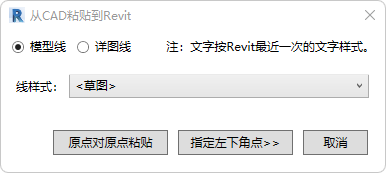
3. Paste Settings
- In the Paste from CAD to Revit window, you can choose to paste as Model Lines or Detail Lines, and also set the line style for the pasted elements.
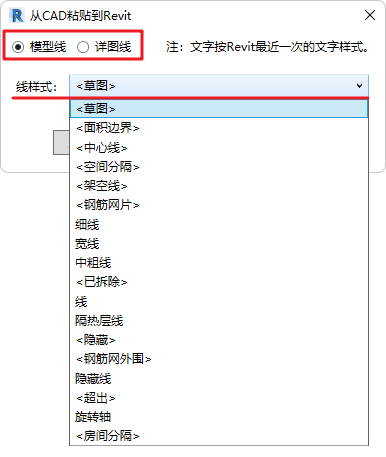
- Choose the paste method: Origin-to-Origin or Specify Bottom-Left Point:
- Origin-to-Origin: The relative position of elements in Revit corresponds to the relative position of elements to the origin (0,0,0) in AutoCAD.
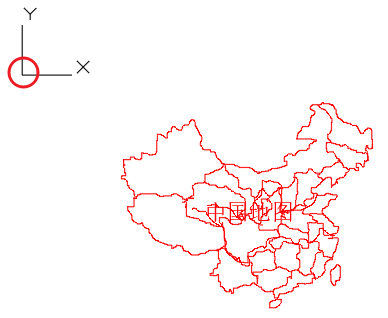
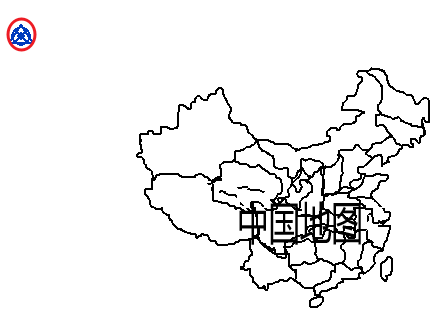
- Specify Bottom-Left Point: The bottom-left corner intersection of the outermost control lines of the whole graphic corresponds to the point picked by the user with the mouse.
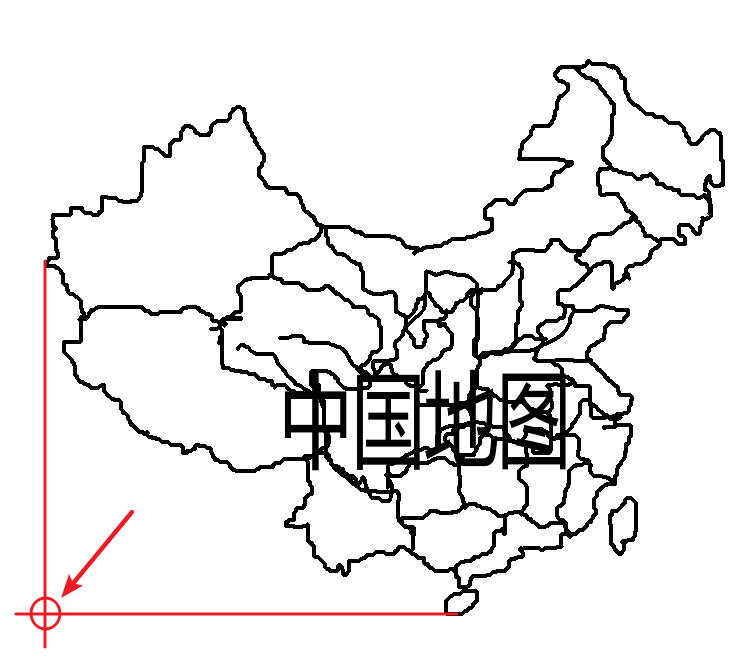
- Origin-to-Origin: The relative position of elements in Revit corresponds to the relative position of elements to the origin (0,0,0) in AutoCAD.
📝 Note
If the copied elements contain text, it will be pasted using the text style most recently used in Revit.