
The uBIM CADBot from uBIM Software has just been updated with a brand-new feature! Last month’s release of uBIM CADBot(previous article:link)received great feedback — along with a common user request: DWG comparison. While DWG comparison has been available in AutoCAD 2019 and later, and many third-party tools also offer it, users still found themselves asking for more. Why? Let’s take a look.
1. Where the Need Comes From
Through user discussions and testing, we identified two major pain points with existing DWG comparison tools:
● Only two drawings can be compared at a time. In practice, users often need to compare entire sets of drawings. Repeated manual comparison is inefficient, and AutoCAD’s built-in compare command is cumbersome — many users try it once and give up.
● Lack of clear cloud markups. Most third-party tools don’t provide clouded annotations, and while AutoCAD’s built-in compare does, the cloud lines are often coarse and imprecise. Below is an example of AutoCAD’s native compare feature — users must first open File A, run the “Compare” command, choose File B, view differences, then click another button to save results. It’s repetitive and slow, allowing only one comparison per run.
Even with the “finest” settings, the cloud lines remain rather rough.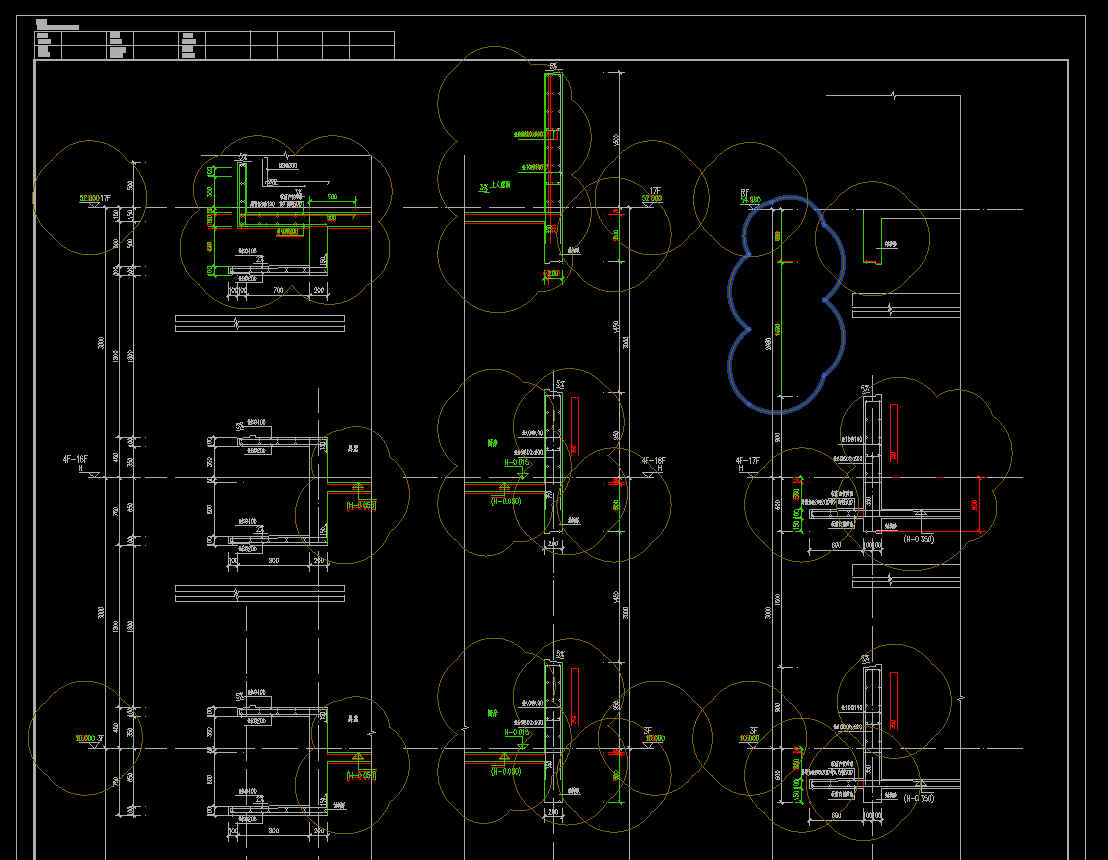
2. Feature Interface
To address these pain points, uBIM CADBot introduces a smarter, faster approach to DWG comparison:
● Batch comparison with automatic pairing. Simply drag two folders in — uBIM CADBot intelligently matches and compares files one-to-one in batches, completing the process in seconds.
● Refined cloud markups. Results are color-coded and automatically surrounded by precisely generated cloud lines. The cloud size and density are optimized for design readability — detailed yet balanced. Below is the CADBot interface. On the left, select the “Compare DWG” function; on the right, drag in multiple files or folders. Click “Default Sort,” and the program automatically pairs files with the highest filename similarity. If the names are unrelated, manual reordering via “Move Up/Down” is available.
The entire batch process is non-destructive — your original files remain intact. Comparison results are saved as new DWG files. In this example, six pairs of DWGs were compared in just 18 seconds, with results clearly listed — identical pairs are labeled accordingly.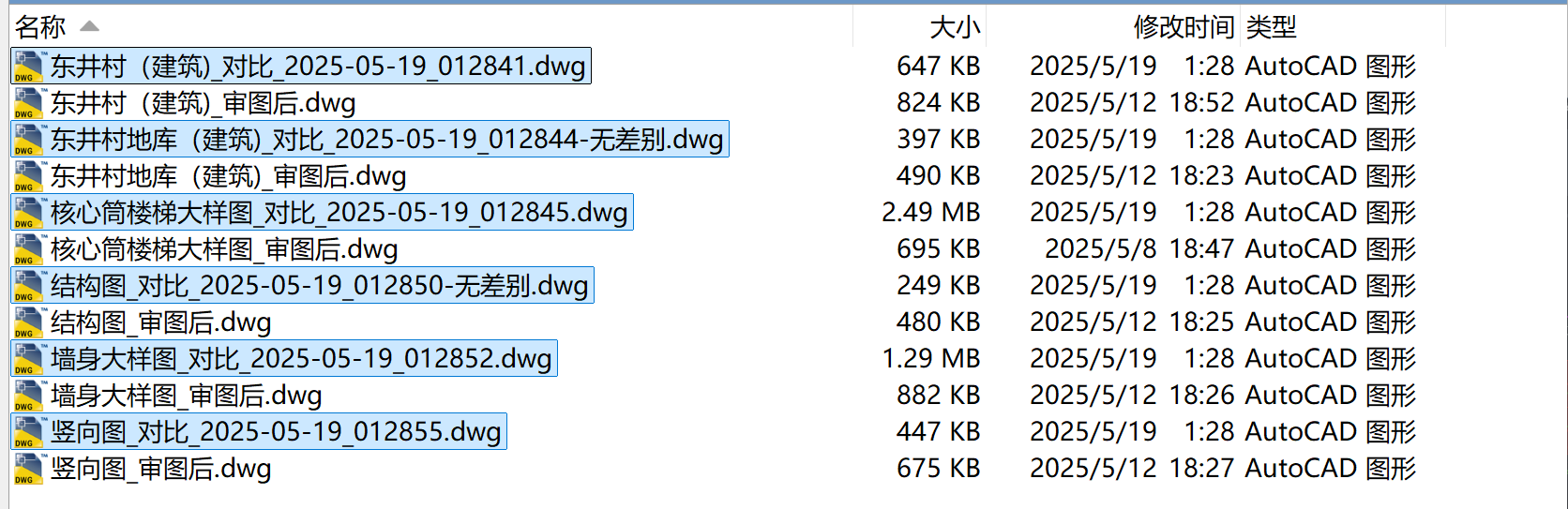
3. Result Preview
Compared to AutoCAD’s native comparison, uBIM CADBot’s results are sharper and more comprehensive — every change, big or small, is clearly highlighted with cloud markups. Cloud line thickness can be customized, with the default setting tuned for common needs.
Zooming in, you’ll see:
● Original geometry in gray
● Deleted elements in red
● New elements in green
● Cloud boundaries in purple
The markup area is precise and well-proportioned — clear at a glance.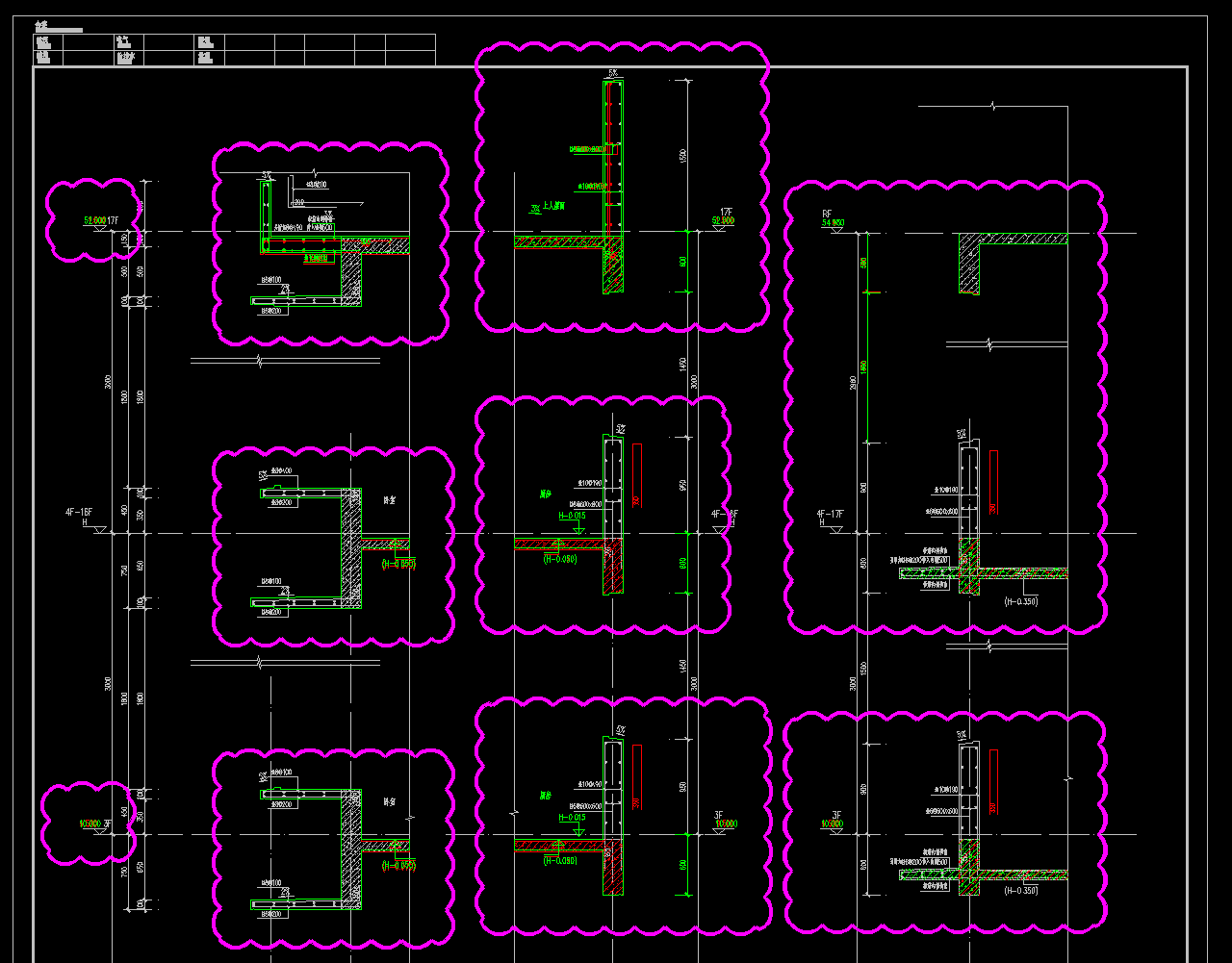
With uBIM CADBot’s DWG Comparison feature, you can finally say goodbye to “spot the difference” by eye. It saves valuable time, prevents missed or incorrect revisions, and helps technical leads and QA managers shift from “reviewing everything” to “focusing on what matters.” The result: greater accuracy, higher efficiency.
4. How to Use
1 Download and install “uBIM Plugin Manager.”
2 In the manager, select “uBIM CADBot” and click Try / Install.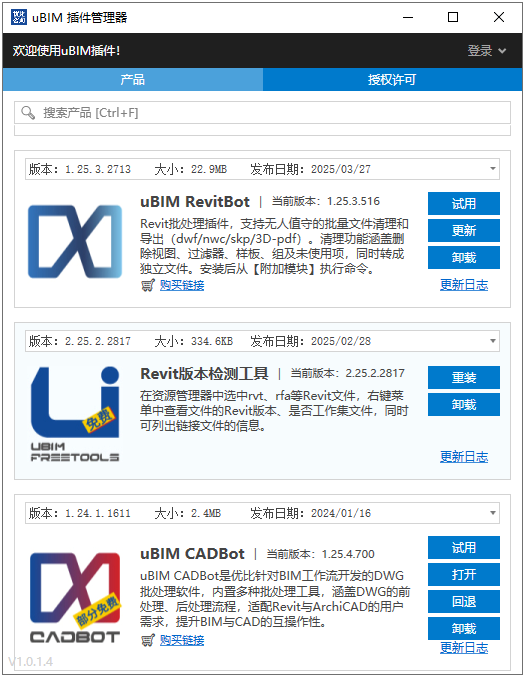
After installation, launch the program using the “Open” button in the Plugin Manager.
The software is available on Weidian, and can be trialed or purchased through the uBIM Plugin Manager.
💰 Price: RMB 100/year
🎁 Special Offer: Buy one year, get one free (valid until December 31, 2025)
We welcome your feedback and feature requests — the most popular ones will be prioritized for future updates.
Now download the uBIM Plugin Manager and try more practical and powerful BIM tools for free!