uBIM Software continues to roll out new products! Following last month’s release of uBIM RevitBot, another “bot” has joined the lineup — uBIM CADBot. After more than a year of offering free features (previous story link), the tool has now received a major upgrade and been officially released, integrating 22 DWG batch processing features tailored for BIM workflows, greatly improving interoperability between BIM and CAD.
1. Why This Tool Exists
There are countless AutoCAD-based add-ins on the market — so why do we still need CADBot?
Because this is an independent software developed by BIMers, for BIMers.
Over the years, BIMers working with DWG files — whether pre-processing or post-processing — often encounter numerous small but annoying issues. Solving them requires collecting various small plug-ins, which is tedious and inefficient. As a result, many inefficiencies have simply been accepted as “normal.”
As perfectionist BIMers and BIM+CAD developers ourselves, we created uBIM CADBot to address these pain points head-on — so that those “normal” issues can finally be solved effortlessly through simple batch commands.
2. Software Interface
uBIM CADBot is a standalone application, not an AutoCAD add-in, and does not rely on AutoCAD to run. It has only one interface, as shown below: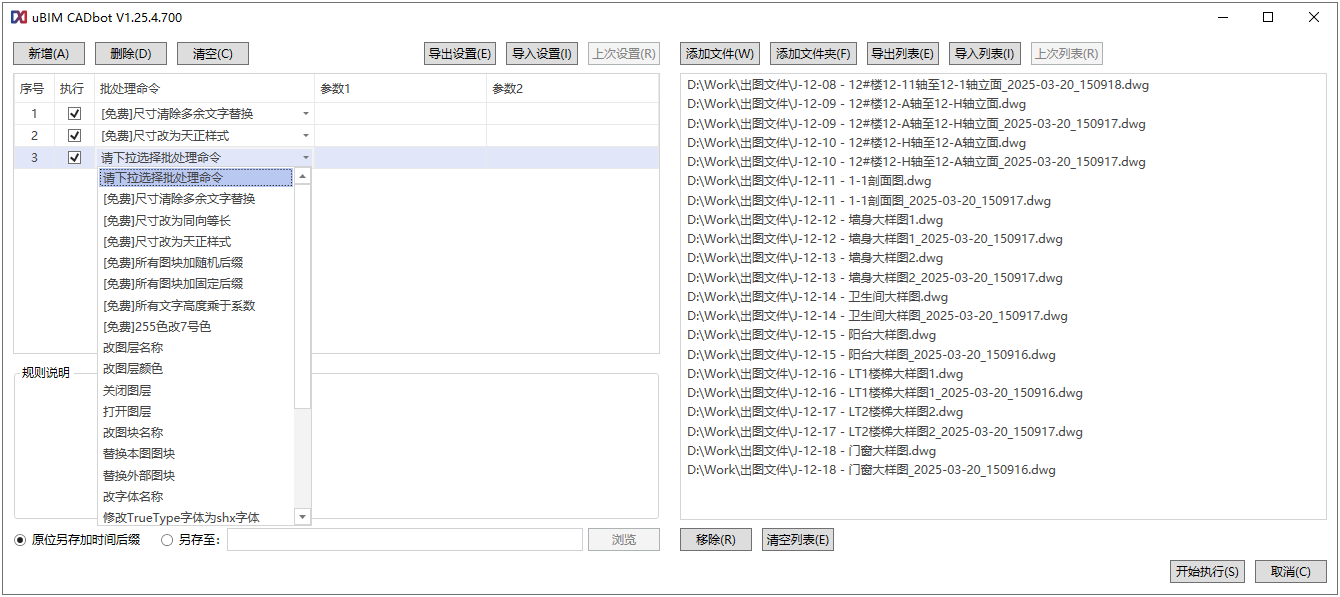
The interface is extremely simple:
● On the right: a DWG file list where you can drag in multiple files at once.
● On the left: a panel of batch processing commands, where multiple commands can be added and saved as presets.
● The bottom-left window shows rule descriptions and parameter instructions for the selected command.
Click “Start Execution” in the bottom-right corner, and within moments, all files are processed. Processed files can be saved with a date suffix or exported to a designated folder.
3. Feature Overview
As mentioned in the previous story, the early version of this software originated from several common ArchiCAD user requests, offering three free tools.
This upgrade expands the offering to seven free tools, plus 15 advanced tools.
(A) 7 Free Tools (Forever Open)
● Convert dimensions to Tianzheng style
● Add random suffixes to all blocks
● Add fixed suffixes to all blocks
● Clear extra dimension text overrides
● Normalize dimension direction and length
● Multiply all text heights by a factor
● Convert color 255 to color 7
(B) 15 Advanced Tools
Newly added advanced tools to reduce repetitive manual work for BIMers:
● Rename layers
● Change layer colors
● Turn layers off
● Turn layers on
● Rename blocks
● Replace blocks within the current drawing
● Replace external reference blocks
● Replace external reference blocks
● Change font names
● Convert TrueType fonts to SHX fonts
● Fix missing fonts in text styles
● Modify global linetype scale
● Batch print to PDF
● Batch print to JPG
● Batch purge drawings
● Merge all files in the list into one DWG
4. Example Features
Full documentation will follow later — for now, here are a few favorite features.
1. Multiply All Text Heights by a Factor (Free Tool)
A common overlooked problem:
When DWGs are linked into Revit, text often appears enlarged — room names overflow from their boundaries.
This happens because most DWGs use SHX fonts, which Revit automatically converts to Windows TrueType fonts upon linking. For Chinese text, TrueType appears 30–40% taller than the SHX-defined height: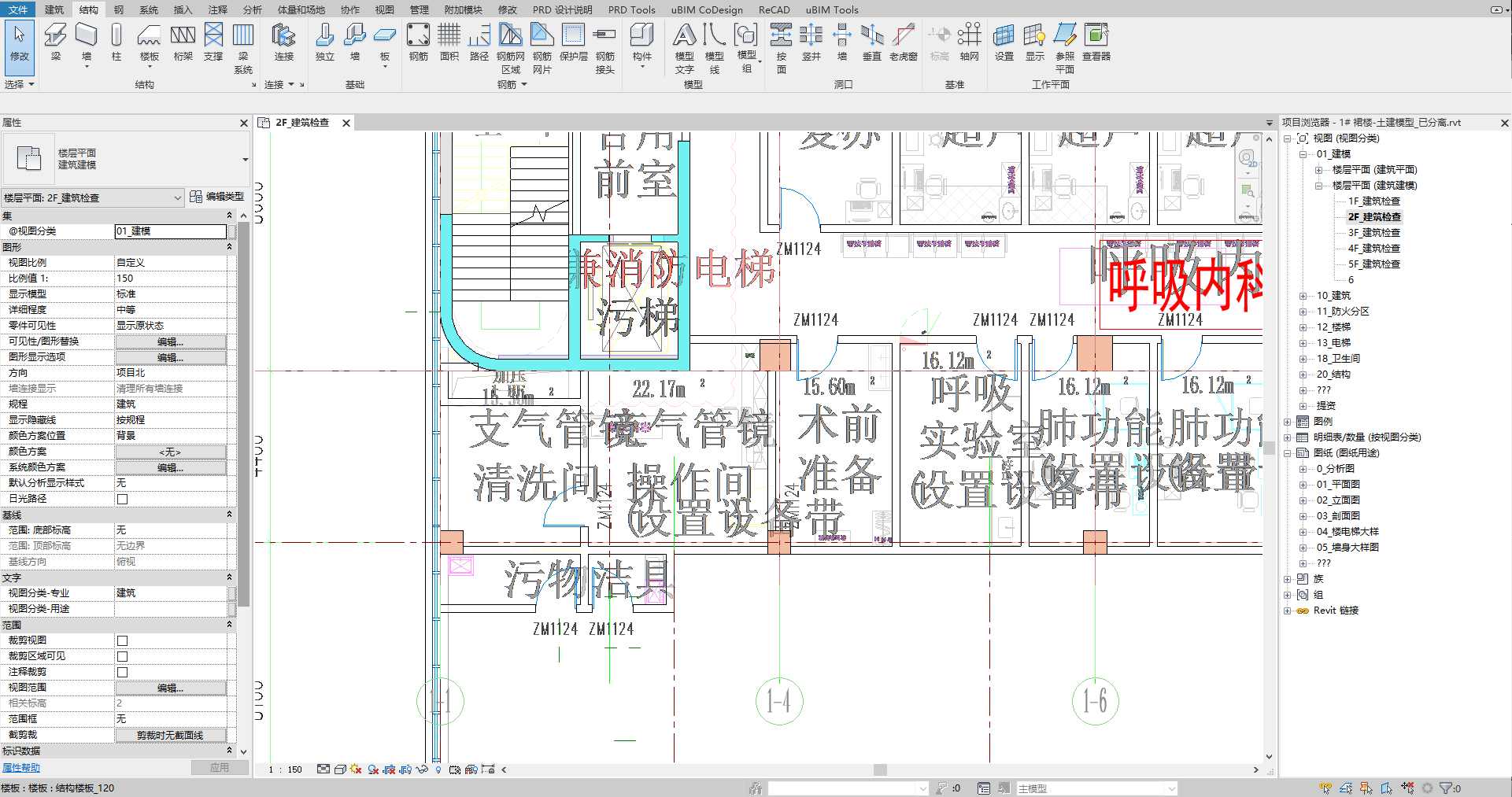
With uBIM CADBot, simply scale all text heights.
In this case, setting the scale factor to 0.7 restores the original visual height perfectly: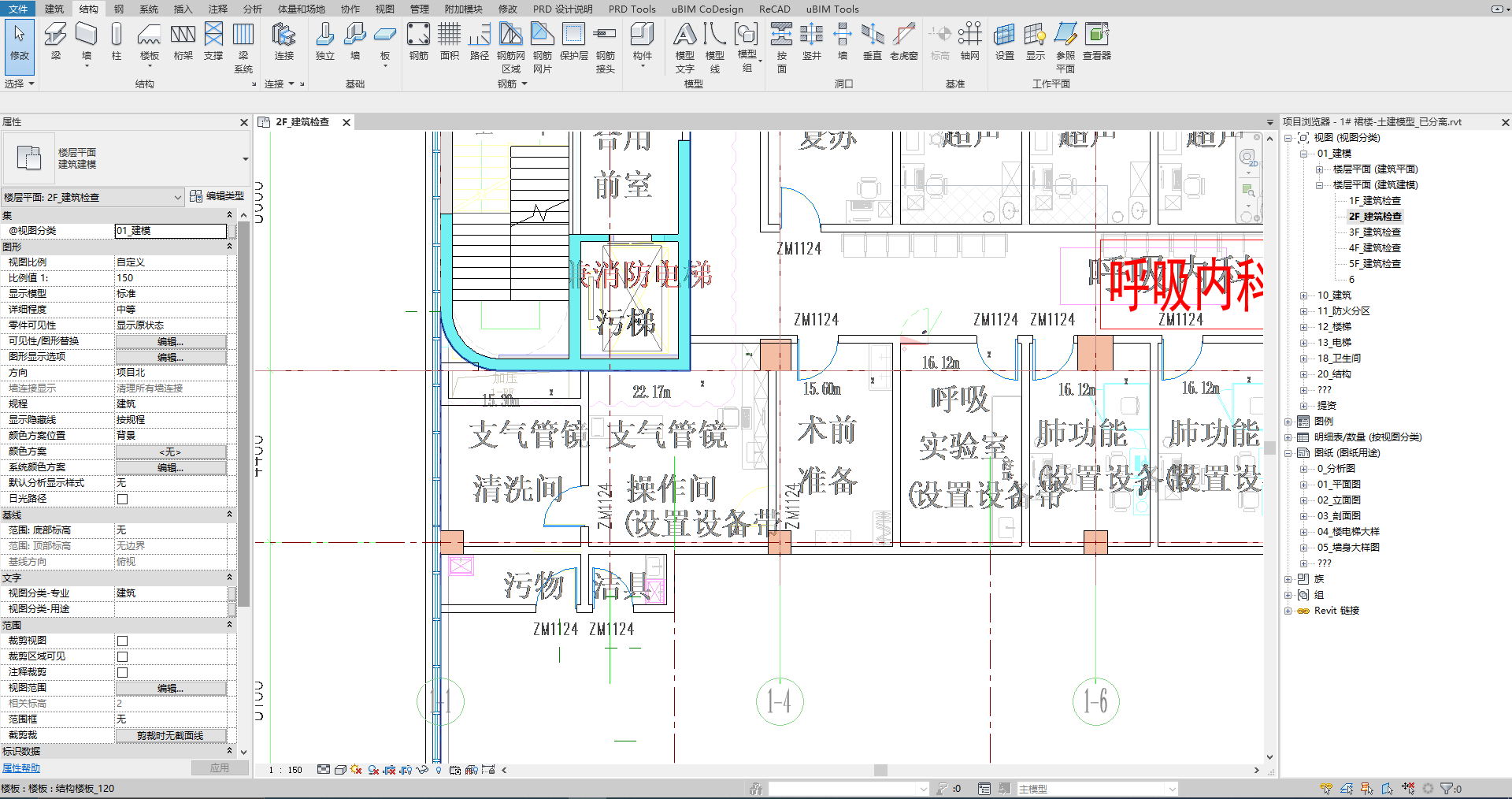
2. Convert TrueType Fonts to SHX Fonts
This feature also exists in our uBIM ReCAD software, though the intent differs:
● ReCAD focuses on precision conversion for deliverables.
● CADBot focuses on lightweight DWG viewing, not on maintaining exact typographic fidelity.
For example, in a BIM reverse-modeling project, DWGs exported from different BIM tools used heavy TrueType fonts, making panning and zooming painfully slow: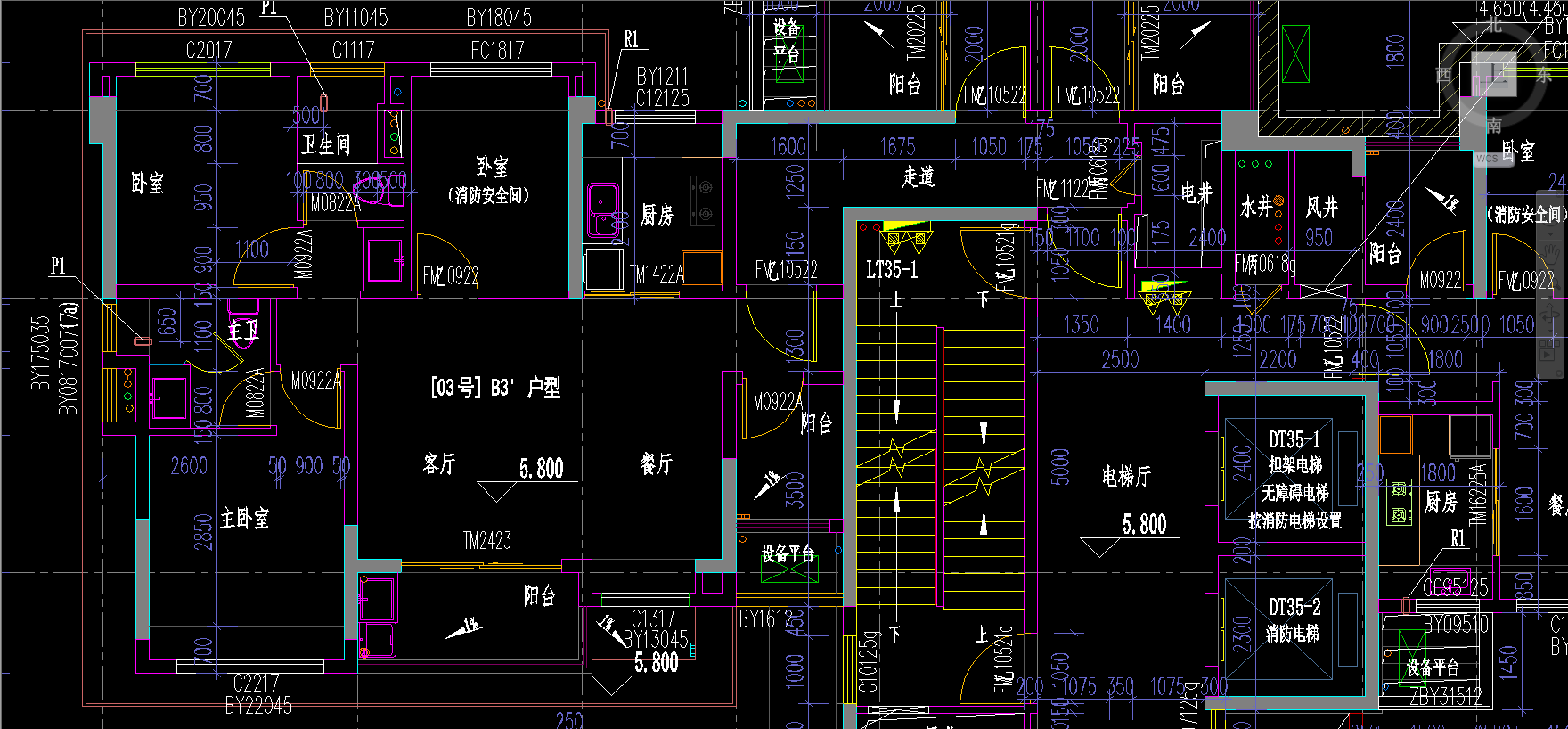
After conversion with CADBot, the TrueType fonts become single-line SHX fonts, improving DWG navigation by over 100x: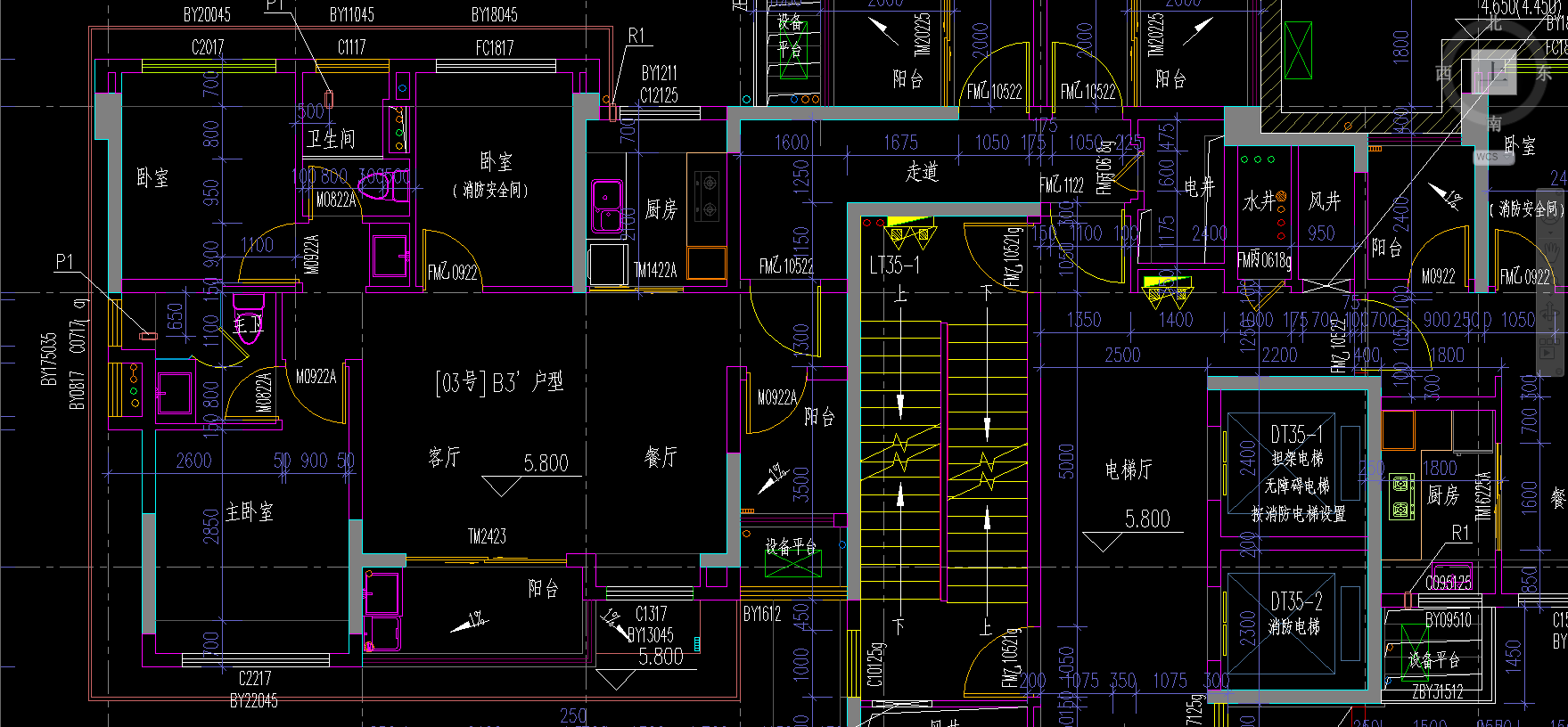
3. Fix Missing Fonts in Text Styles
Another headache solved — the “Missing font” pop-up every time you open DWGs in AutoCAD.
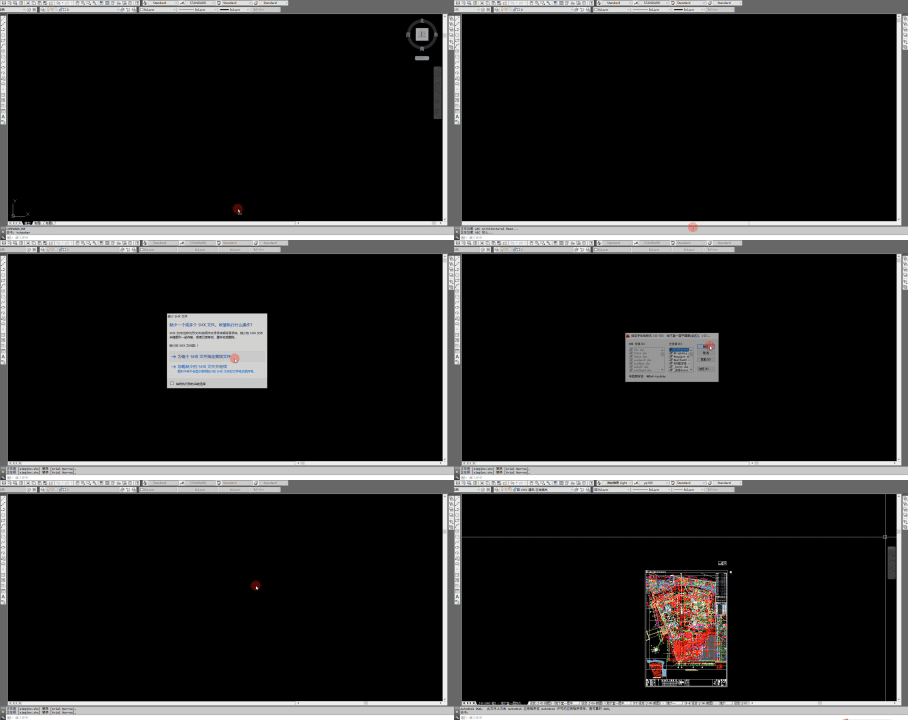
With CADBot, you can batch-fix font styles across an entire DWG set, so you’ll never see that warning again: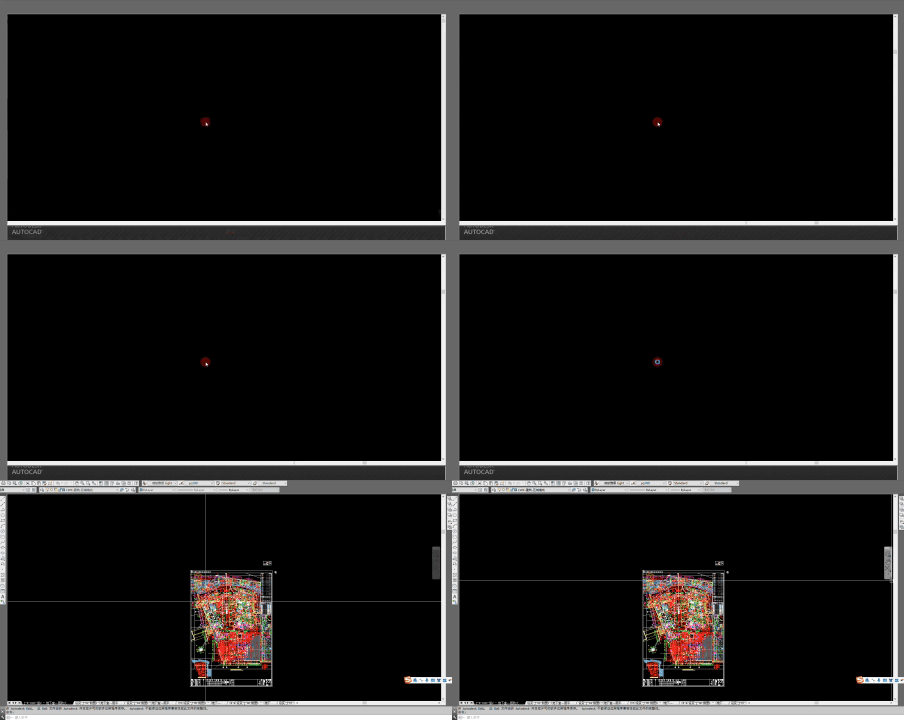
4. Batch Print to PDF & JPG
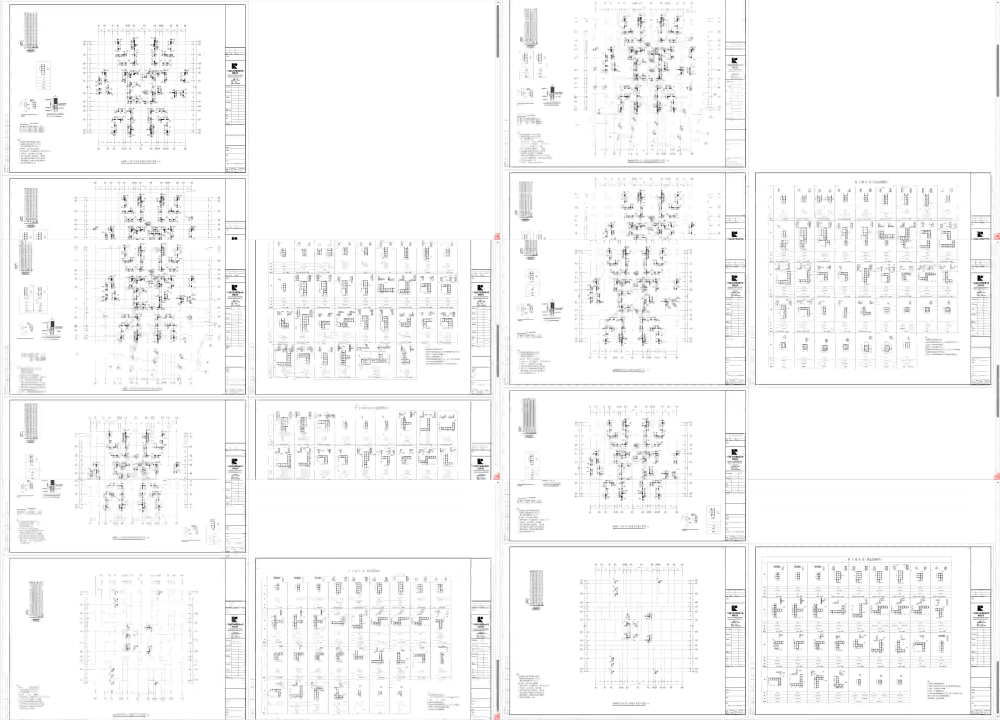
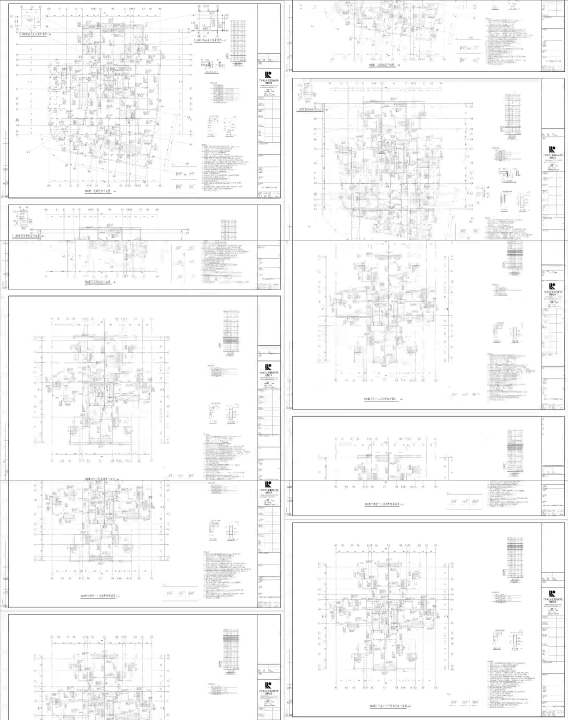
When starting a new modeling task, we often need to browse the entire DWG set first — but DWGs must be opened one by one. With CADBot, you can batch print all DWGs to PDF or JPG, making it much easier to review drawings at a glance — especially in JPG format.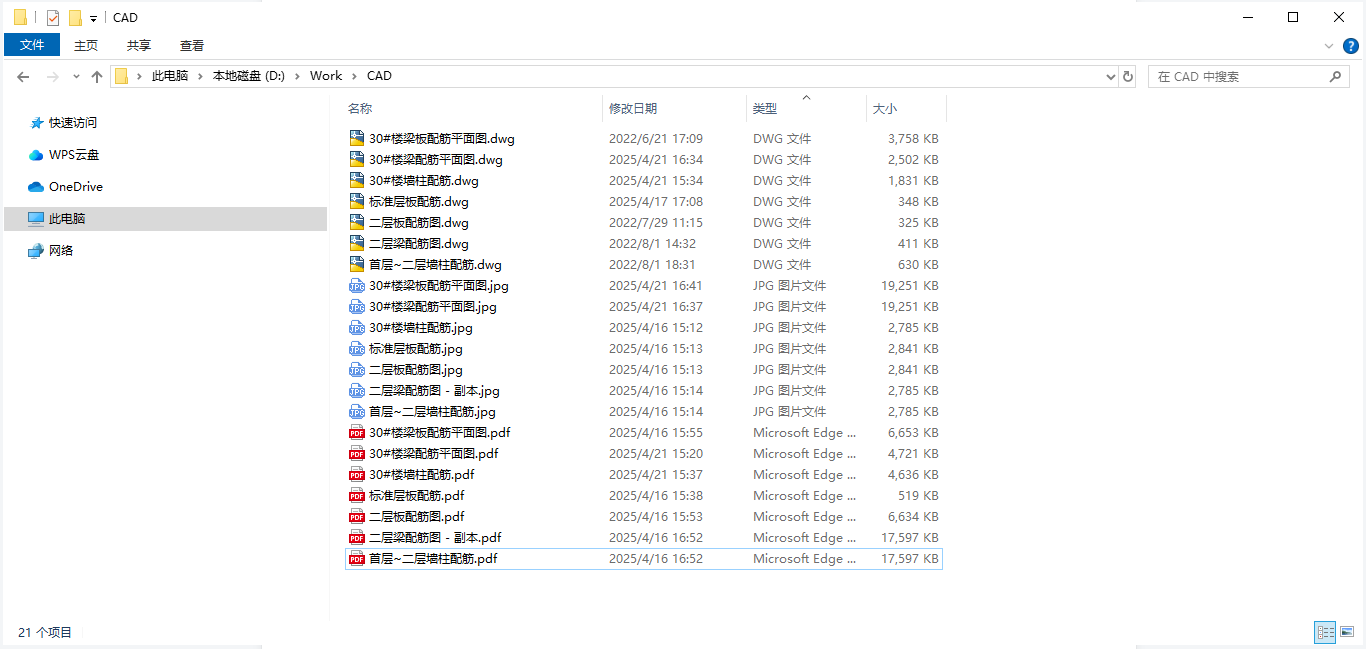
【Batch Print to PDF Example:】
【Batch Print to JPG Example:】
Other features are self-explanatory from their names. Some solve niche issues — for example, Normalize dimension direction and length may sound obscure, but those who’ve seen DWG exports from BIM software trigger “inaccurate dimension value” warnings in compliance tools will know how valuable it is.
5. How to Use
1 Download and install uBIM Plugin Manager.
2 In the Manager, find uBIM CADBot, then click Try / Install.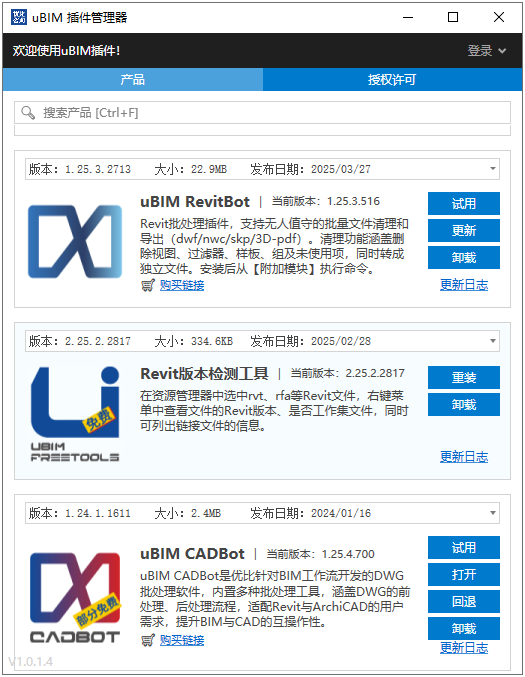
Once installed, launch it via the Open button in the Plugin Manager.
The software is available on Weidian, and can be trialed or purchased through the uBIM Plugin Manager.
💰 Price: RMB 100/year
🎁 Special Offer: Buy one year, get one free (valid until December 31, 2025)
We welcome your feedback and feature requests — the most popular ones will be prioritized for future updates.
Now download the uBIM Plugin Manager and try more practical and powerful BIM tools for free!