
In early spring 2025, uBIM proudly launches its first new software of the year — uBIM RevitBot.
“Bot” is short for “robot,” meaning a program that performs automated tasks. As the name suggests, uBIM RevitBot is designed to automate batch processing tasks for Revit files.
Its goal isn’t modeling or drafting, but rather —
File Cleanup & Model Conversion
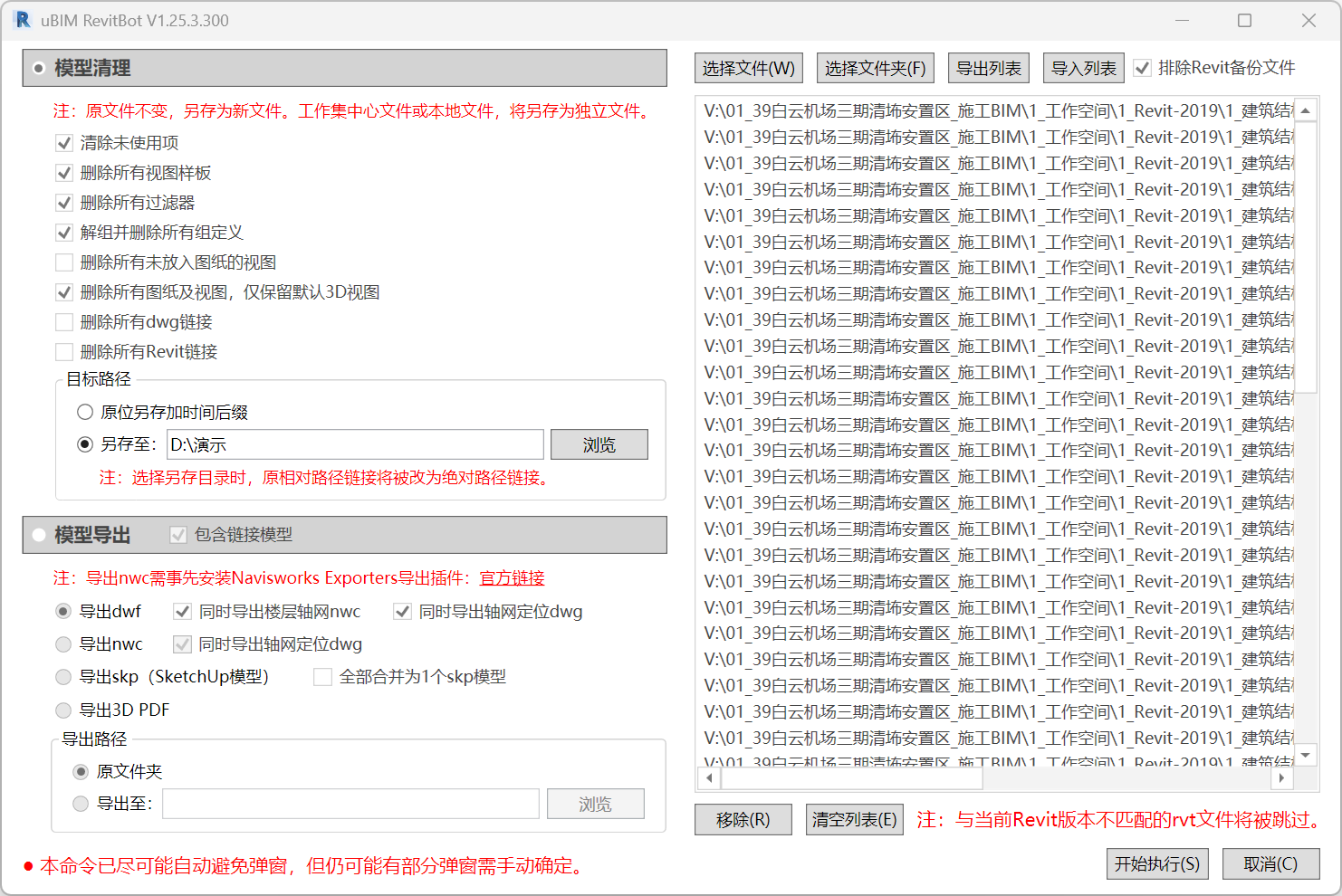
These are essential steps in BIM delivery and model exchange workflows. Before introducing specific features, let’s first talk about one major pain point this software solves:
Unattended Batch Processing
As every Revit user knows, opening a file often triggers numerous pop-up dialogs:
central file warnings, missing links, out-of-range DWGs, plugin prompts, incompatible versions, dimension loss alerts, and more — making true batch processing almost impossible. Opening and handling each file manually is time-consuming and tedious.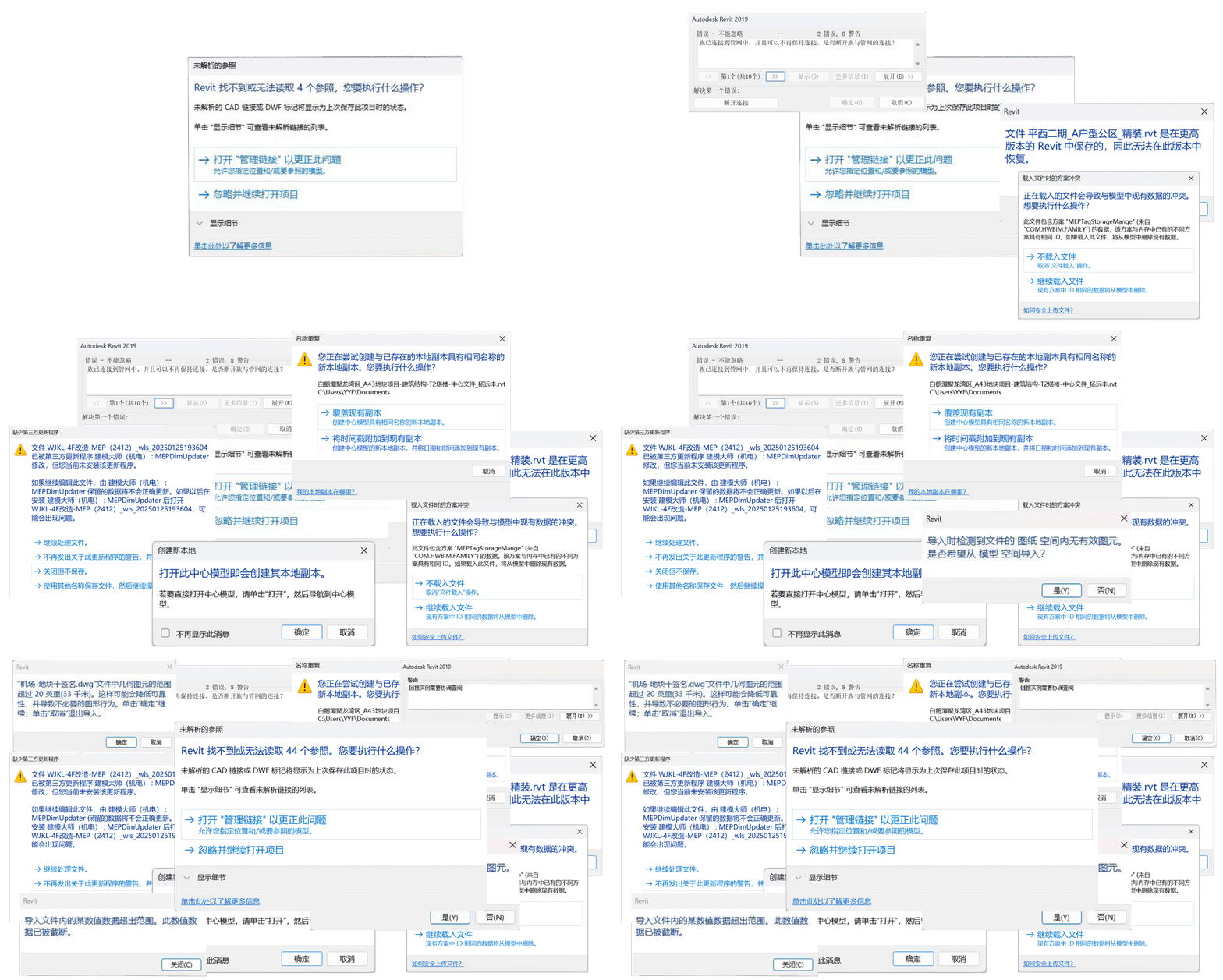
Revit projects are usually divided by discipline, zone, or even floor. A single medium-to-large project can easily contain dozens of RVT files. During delivery or format conversion stages, BIM engineers often face the exhausting cycle of “open → process → close” again and again.
uBIM RevitBot eliminates nearly all of these pop-up interruptions, enabling fully automated batch operations with no human intervention required, dramatically reducing repetitive manual work.
Let’s take a closer look at what this Revit “robot” can do.
RevitBot adds just one icon, located under Revit’s native “Add-ins” tab. Its interface is extremely simple — functions on the left, and a file list on the right where you can drag and drop multiple files.
1. Batch Cleanup
The upper section of the settings panel handles model cleanup, offering 8 configurable options:
1. Purge unused elements
2. Delete all view templates
3. Delete all filters
4. Ungroup and delete all group definitions
5. Delete all views not placed on sheets
6. Delete all sheets and views, keeping only the default 3D view
7. Delete all DWG links
8. Delete all Revit links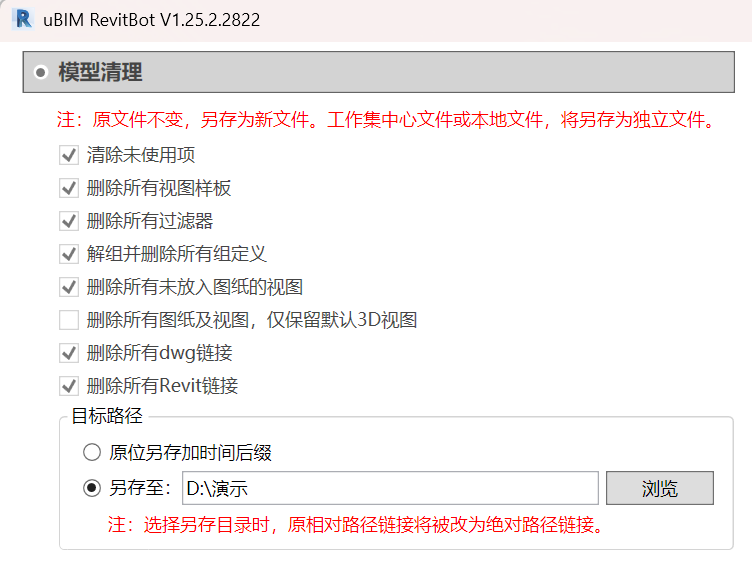
You can check any combination of these options as needed. Option 6, for example, removes all views and annotations, keeping only the model itself.
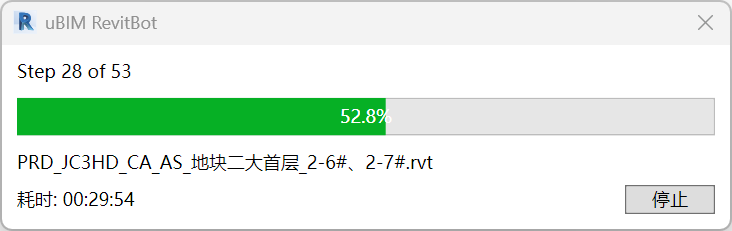
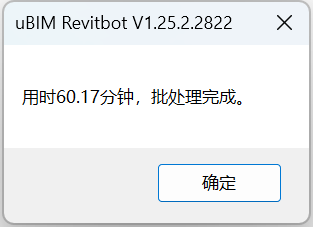
Results can be saved in the same folder (with a timestamped filename) or in a custom output directory. Your original files remain completely untouched — RevitBot first copies the files, then processes them. Once settings are ready, click “Start”, and the program automatically performs “open → process → save → close” for each file. The progress bar shows real-time progress. As shown below, RevitBot cleaned 53 RVT files from an entire project in about one hour, all without supervision.
2. Model Export
uBIM RevitBot also supports batch export to multiple formats — including SketchUp (SKP) and 3D PDF, formats not natively supported by Revit. This greatly simplifies model exchange and collaboration. The export section offers four formats: DWF, NWC, SKP, and 3D PDF.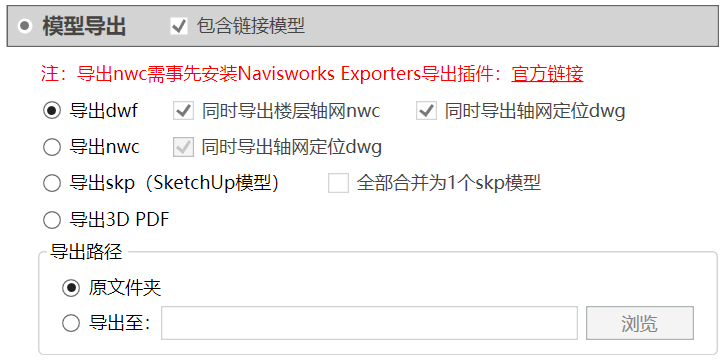
More formats will be added based on user demand. Here’s why these four were chosen:
1、dwf
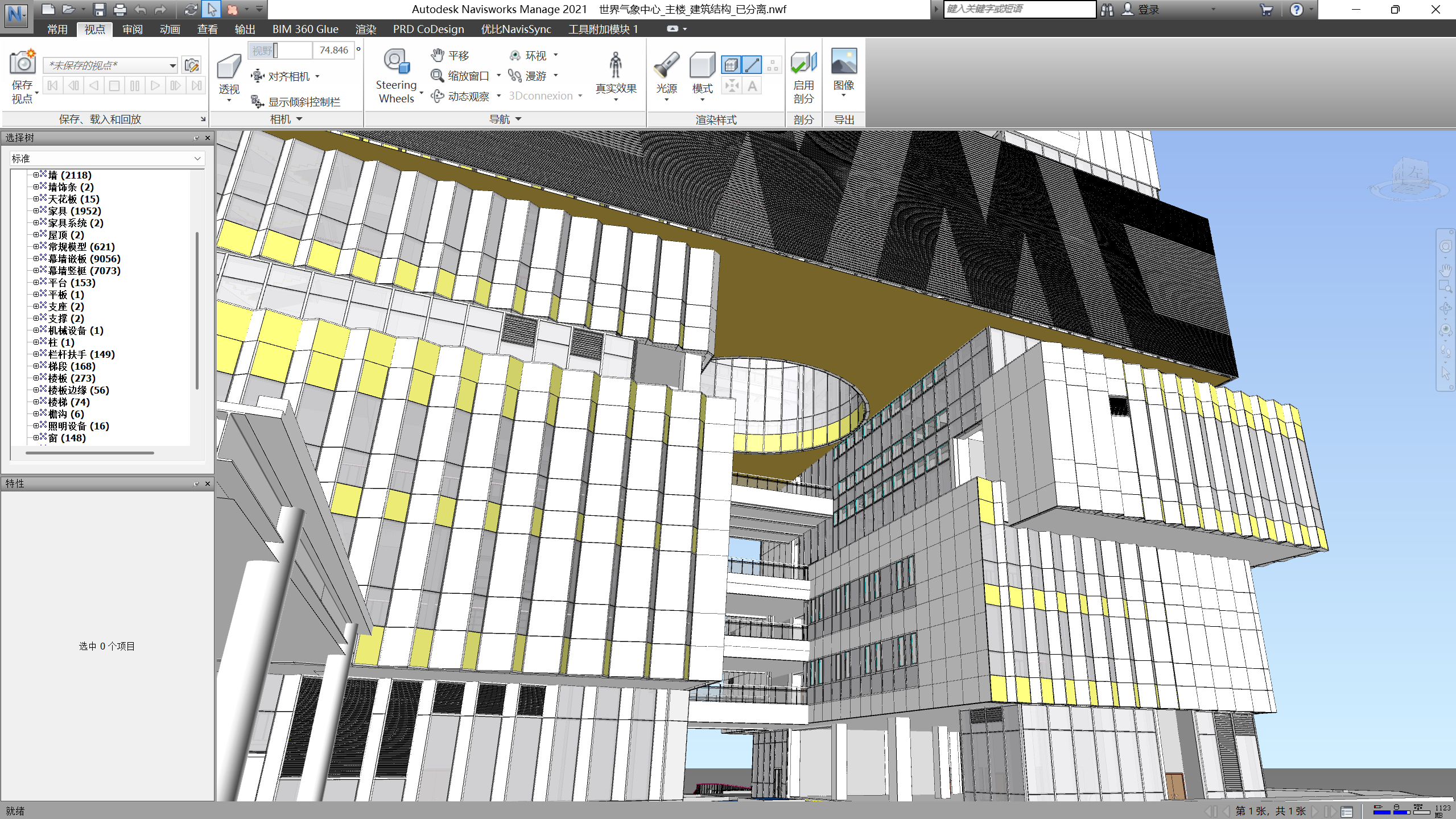
Although not widely used, DWF is actually a great format. In cases where Navisworks’ default visualization is considered too rough, DWF provides a superior alternative — delivering sharper visuals while keeping the lightweight viewing and 4D simulation power of Navisworks. Below is a public building rendered in Navisworks from a DWF export — note the fine edge lines and Revit-like clarity.
2、nwc
This is the go-to format for lightweight models. RevitBot includes it for convenience in batch exporting. The image below shows the same building exported to NWC. Notice the lack of edges and flatter appearance — a common complaint among architects. Using Navisworks + DWF solves this issue perfectly.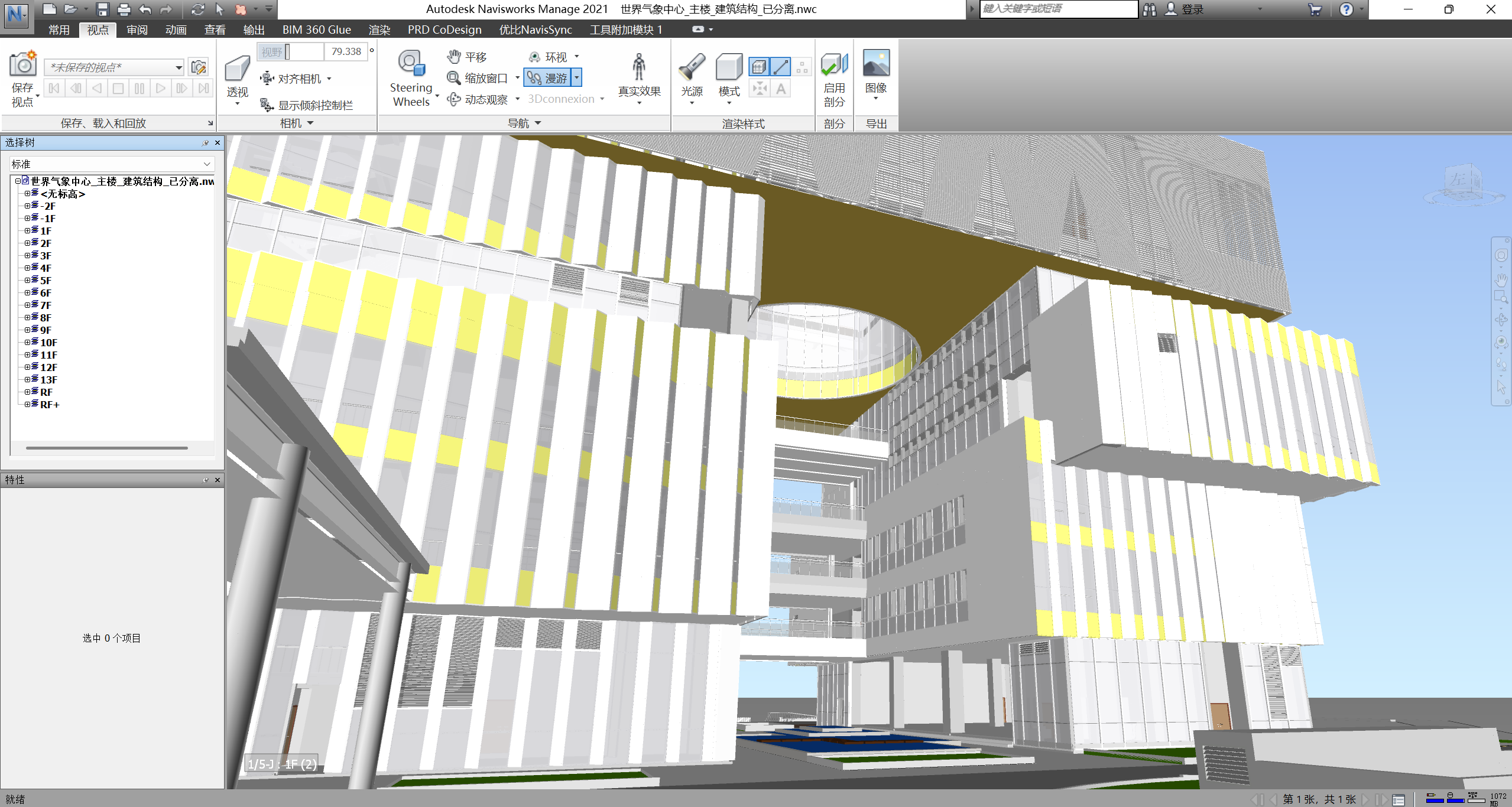
For MEP models, where most elements are pipes or ducts, the lack of edge lines is less of a concern.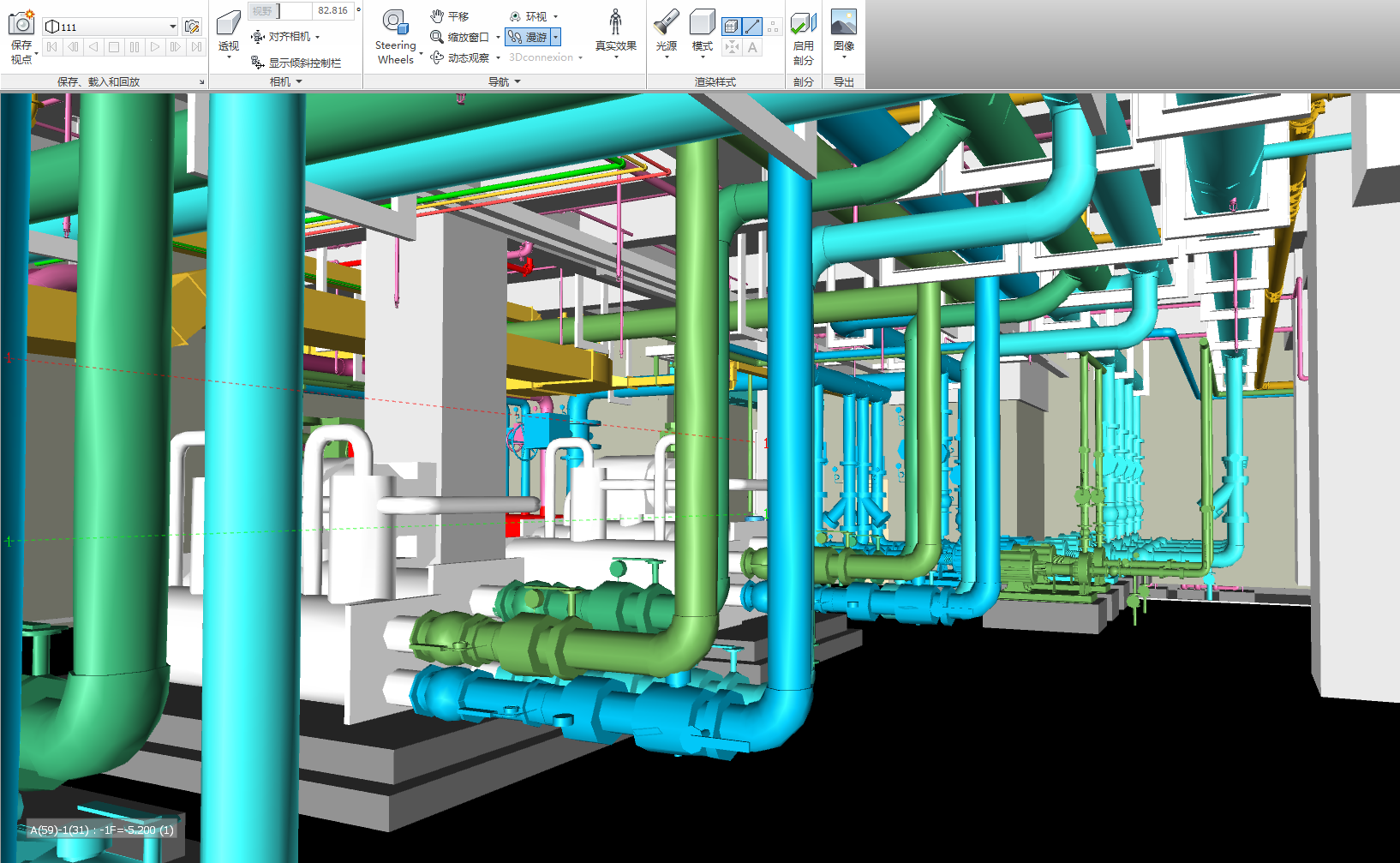
3、skp(SketchUp Model)
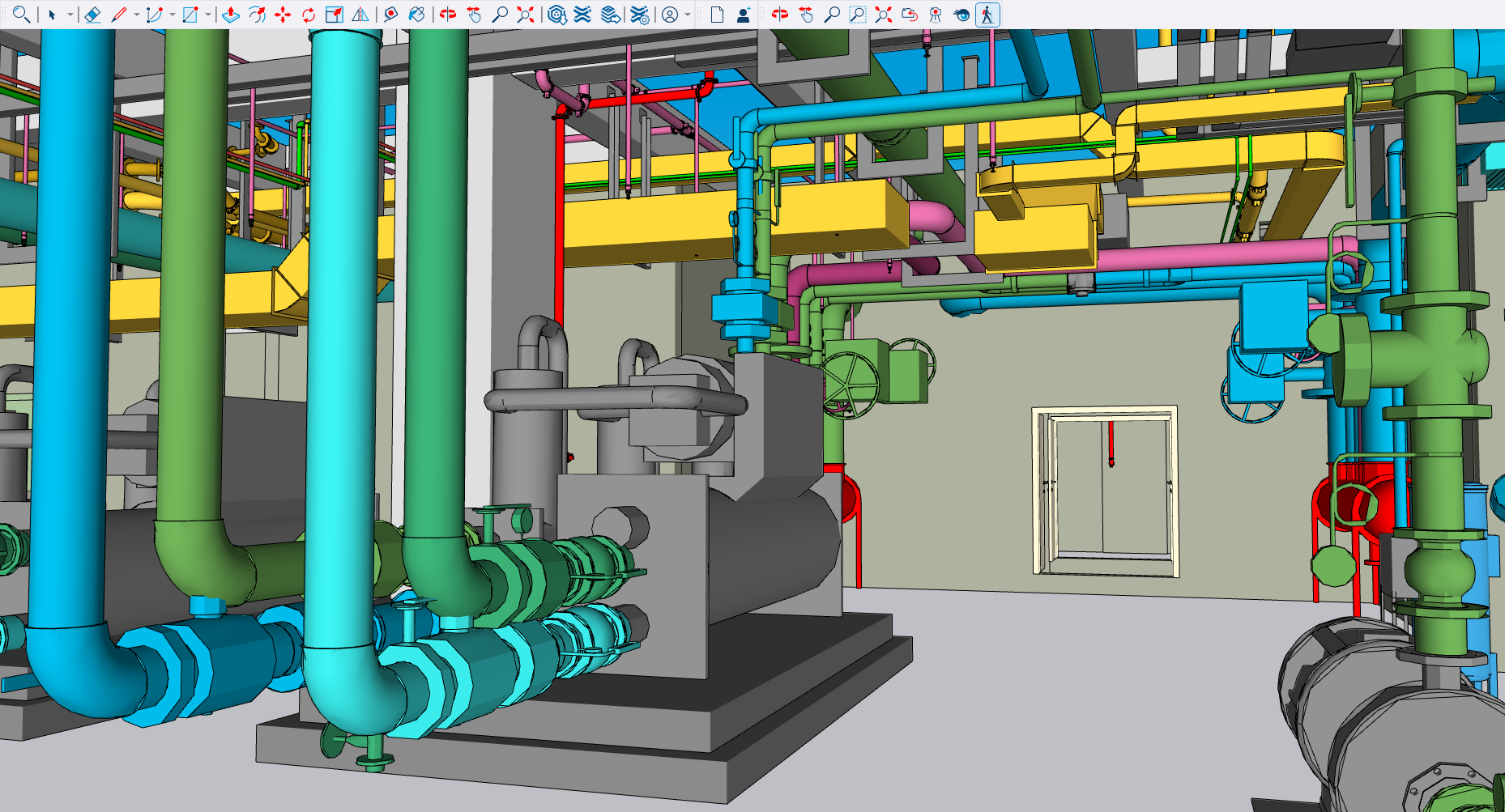
SketchUp is beloved for its simplicity, visual appeal, and plugin ecosystem. Revit supports importing SKP but not exporting it — something users have long wanted. While SketchUp Pro 2023+ allows RVT import through an official plugin (available in SketchUp Studio), many users on older versions still need a way to export Revit models to SKP. uBIM RevitBot solves this by implementing a robust SKP converter, even supporting merging multiple Revit models into one SketchUp file — perfect for those who prefer combined model viewing in SketchUp.
Below is a basement architectural + MEP model exported to SKP and opened in SketchUp — stunning, especially for coordination reviews.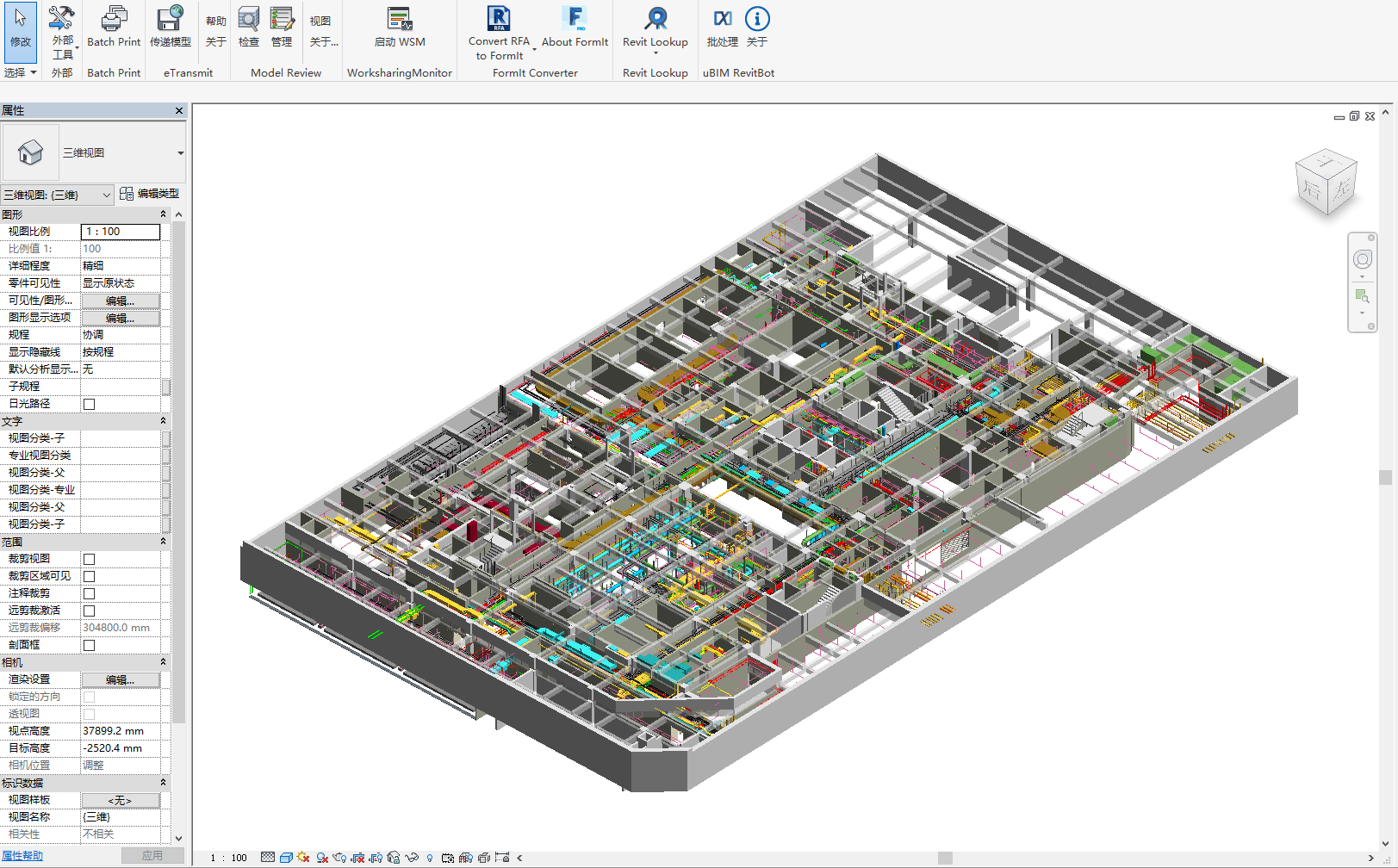
4、3D PDF
Few know that PDF supports 3D models! While not commonly used, 3D PDFs are great for scenarios where you need easy sharing, lightweight files, or confidentiality. They can be viewed with free Adobe Reader, and large models become surprisingly compact — ideal for review or restricted delivery cases.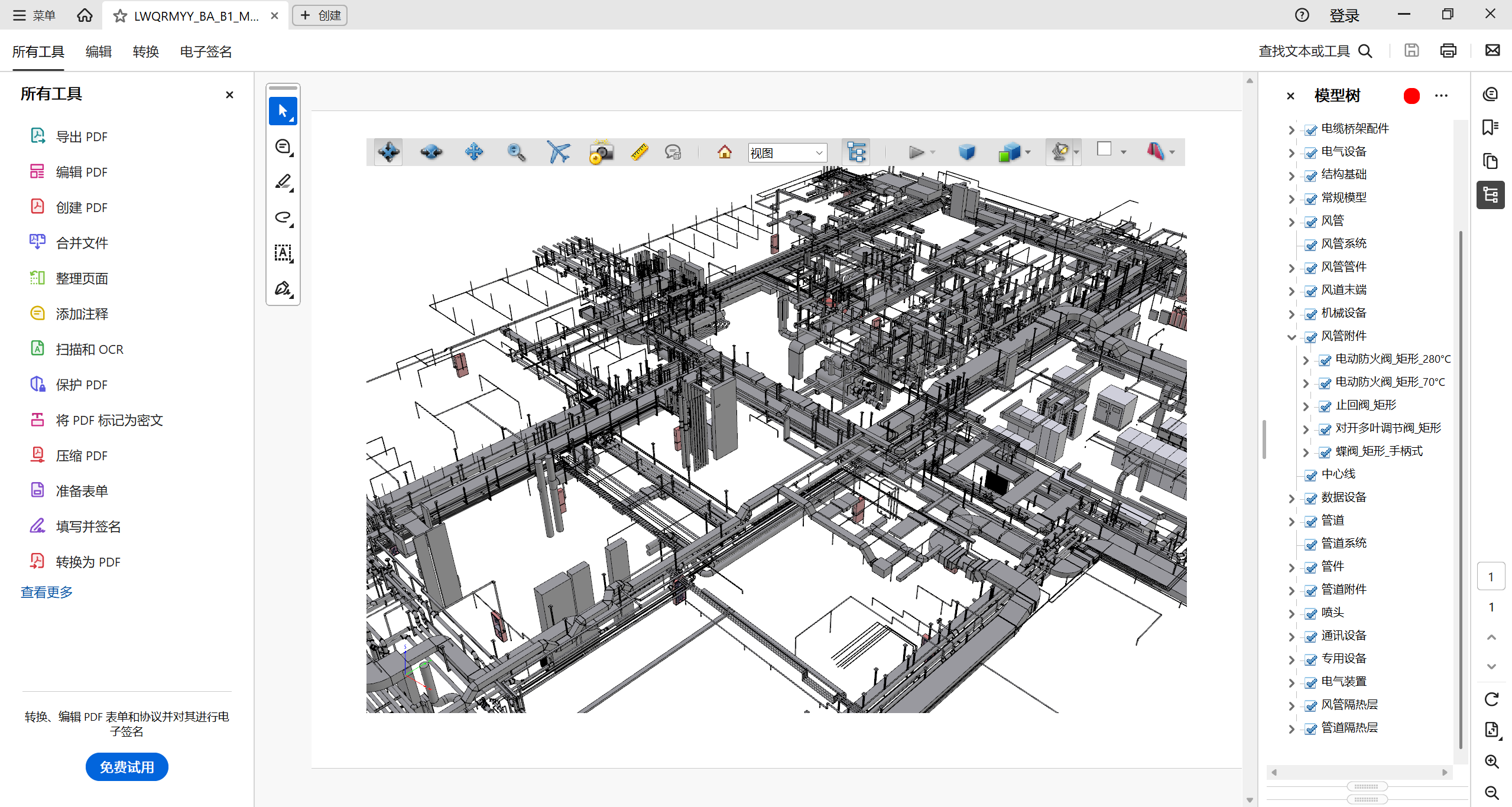
3D PDFs even include visual styles like the “Illustration” mode shown below: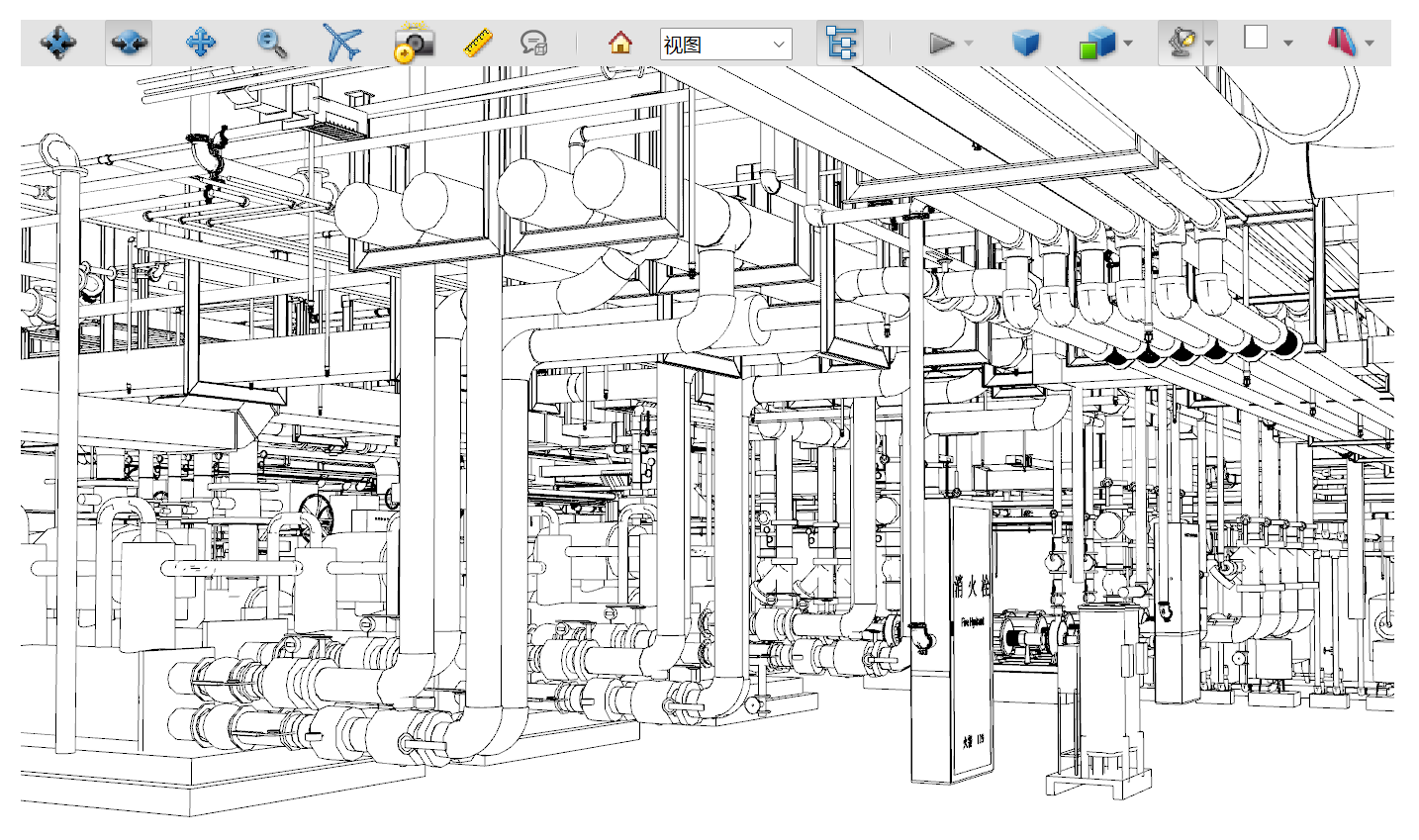
This concludes the overview of uBIM RevitBot, the first uBIM software release of 2025. While we’ve kept the introduction concise, every detail reflects our craftsmanship and passion for BIM tools.
The software is now available on Weidian and can be trialed and purchased via the uBIM Plugin Manager.
💰 Price: RMB 300/year
🎁 Special offer: Buy one year, get one free (valid through December 31, 2025)
We hope this “Bot” becomes your BIM partner!
If you’d like to see new batch functions or export formats, feel free to leave feedback — more practical tools are on the way.
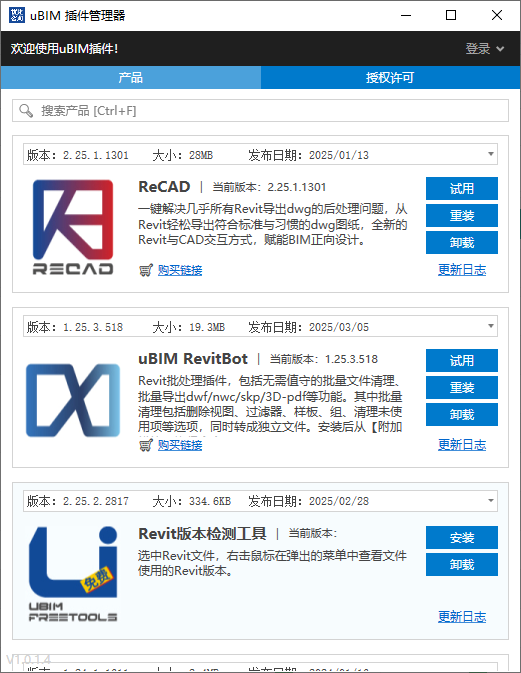
Try uBIM RevitBot today:
👉https://uc.u-bim.com/software
User Group (QQ): 947930720
Join code: ubim
Feel free to ask any technical questions in the group during your trial period.